Digital Guide Settings
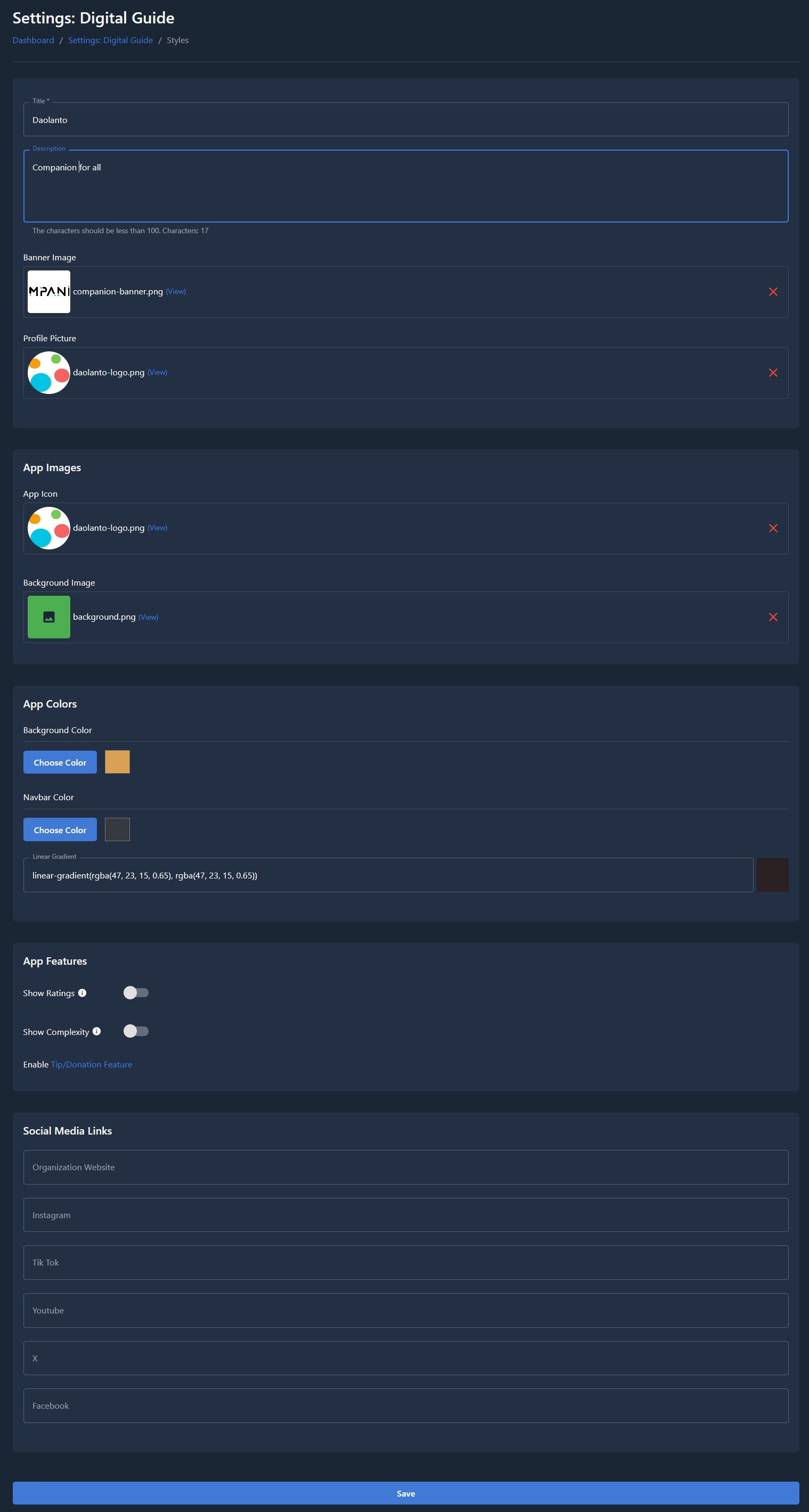
The Digital Guide Settings page allows you to customize the appearance and behavior of your guide.
From this page, you can:
- Set the guide title and description
- Upload images for branding
- Customize colors
- Control which features are visible
- Add social media links
All changes affect how your guide looks and feels to visitors.
Basic Information
Title
The name of your digital guide.
This appears on the home page of the guide.
Description
A short description explaining what your guide is about.
This appears below the title on the home page.
Banner Image
A large image displayed at the top of the guide home page.
Use this to visually represent your organization, location, or theme.
Profile Picture
A smaller image shown near the banner.
Often used for a logo or recognizable visual.
App Images
App Icon
An icon representing your guide.
This helps visitors recognize your guide easily.
Background Image
An image used in parts of the guide background.
This adds visual personality and atmosphere.
App Colors
Background Color
Controls the background color of story pages where object details are shown.
Useful when you want a consistent look or better contrast.
Navbar Color
Controls the color of the top navigation bar.
You can match this with your brand colors.
Linear Gradient
Controls an overlay gradient applied on top of images.
This is useful when:
- Images are too bright
- Text is hard to read
Adjusting the gradient improves readability and visual balance.
App Features
Show Ratings
Turn ON to display user ratings on object pages.
Turn OFF if you do not want to show reviews or ratings.
Show Complexity
Turn ON to display complexity levels on object pages.
Turn OFF if you prefer a simpler viewing experience.
Enable Tip/Donation Feature
Turn ON to allow visitors to send tips or donations while using your guide.
When enabled:
- A tipping option appears in the guide
- Visitors can financially support your organization
- Payments are handled securely via Stripe
This feature requires a connected Stripe account (configured in the Receive Tips and Donations page).
Social Media Links
You can add links to:
- Organization website
- TikTok
- YouTube
- X (Twitter)
These links appear on the guide home page near the banner.
Save Changes
Click Save at the bottom of the page to apply all changes.
Updates are reflected in the guide immediately.
Best Practice
- Use a clear banner image
- Keep title and description short
- Choose colors with good contrast
- Test readability on mobile
- Add only active social links