All Objects
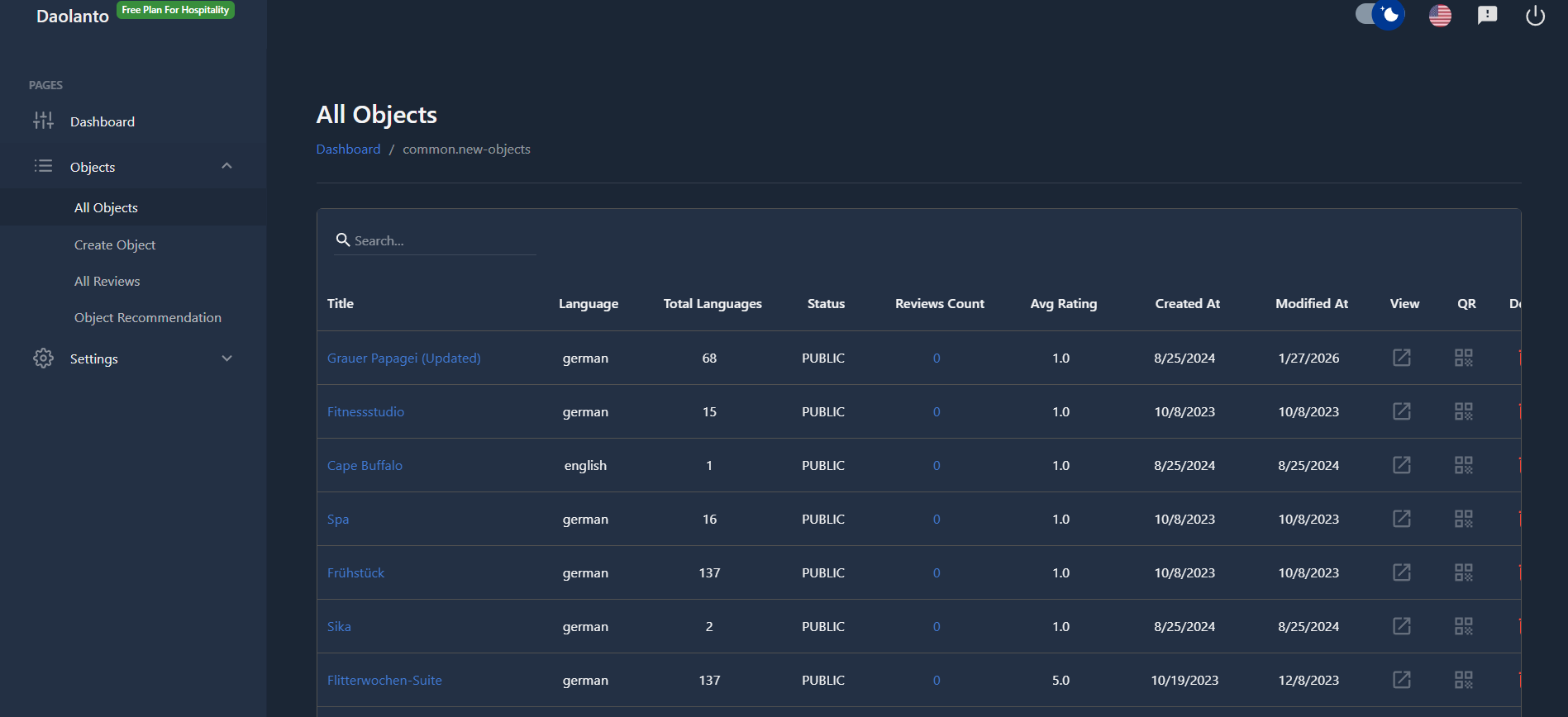
The All Objects page shows a list of every object created in your guide.
From this page, you can:
- View all existing objects
- See important details about each object
- Open and manage object languages
- View object reviews
- Open the object in the guide
- Generate a QR code for an object
- Delete objects if needed
This page is mainly used to manage, review, and maintain your content.
Object List Table
Each row in the table represents one object.
The columns provide the following information:
Title
The name of the object.
Clicking the title opens the object’s Languages page, where you can see and manage all language versions of that object.
Language
The main (original) language used when the object was created.
Total Languages
Shows how many language versions exist for that object.
Example:
If the number is 15, the object is available in 15 different languages.
Status
Shows whether the object is visible in the guide.
- Public – The object is visible to visitors
- Draft – The object is hidden from visitors
Reviews Count
Shows how many reviews the object has received.
This value is clickable.
Clicking the review count redirects you to the Reviews page for that specific object, where you can see all user reviews and feedback.
Avg Rating
Shows the average rating given by users.
Created At
The date when the object was first created.
Modified At
The most recent date when the object was edited.
Search
At the top of the table, you can use the search bar to quickly find objects by title.
This is helpful when you have many objects in your guide.
View Object
Clicking the View icon opens the object’s story page inside the guide.
On this page, you can see the object exactly as visitors see it, including:
- Content and descriptions
- Media (images, videos, audio, etc.)
- Available languages
QR Code
Clicking the QR icon generates a QR code for that object.
- Visitors can scan the QR code using their mobile phone
- After scanning, the object opens directly in the guide
You can download the QR code and place it physically near the object (for example: on a sign, stand, wall, or label).
This allows visitors to instantly access information by scanning, creating a simple and intuitive self-guided experience.
Delete Object
Clicking the Delete icon permanently removes the object.
Important notes:
- The object is deleted from the CMS
- All language versions of the object are deleted
- This action cannot be undone
Use this option carefully.
Best Practice
- Keep objects in Draft until they are ready
- Use Title click to manage translations and languages
- Use Review Count to regularly check user feedback
- Use QR codes to connect physical spaces with digital content
- Avoid deleting objects unless they are no longer needed