Receive Tips and Donations
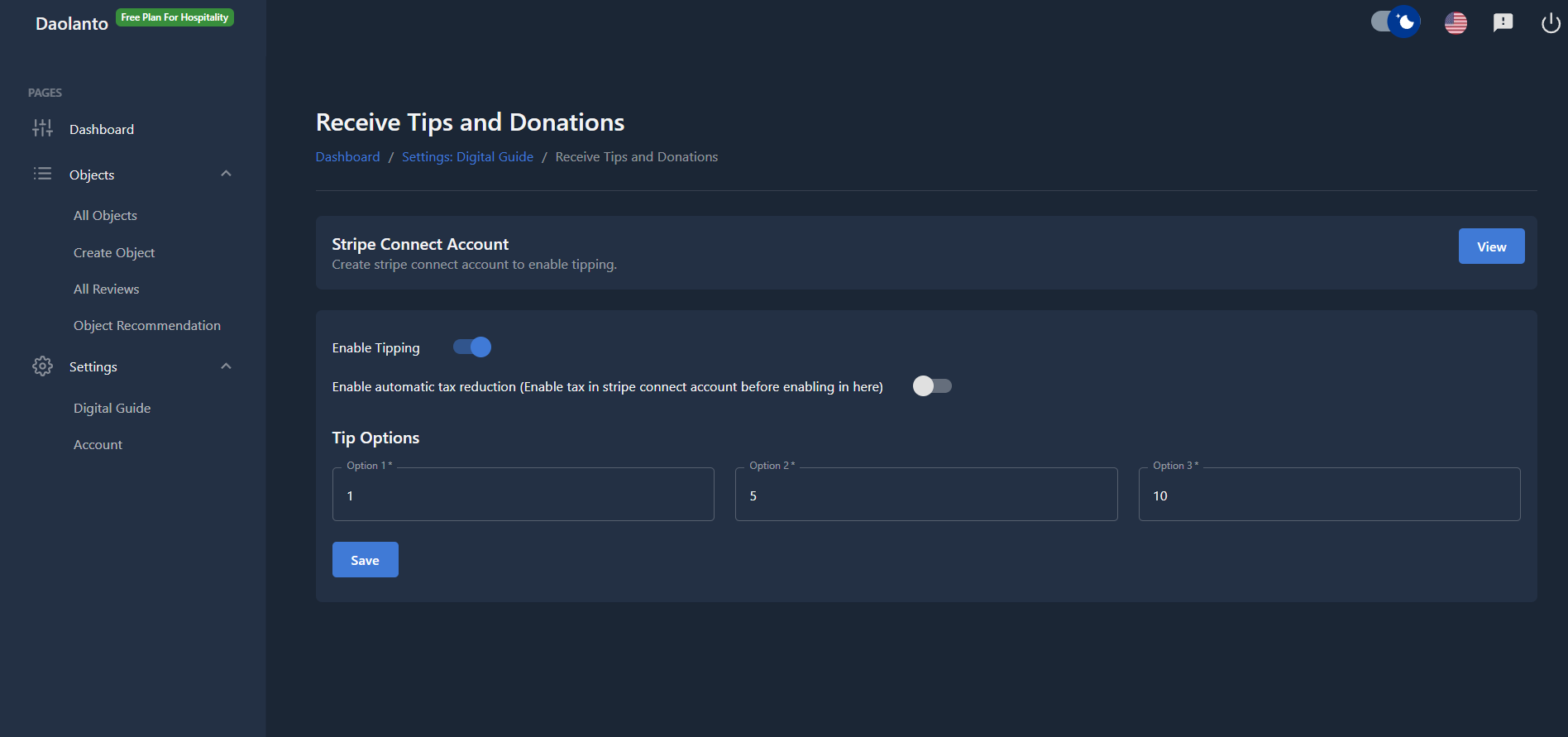
The Receive Tips and Donations page allows you to accept tips and donations from visitors using secure online payments.
Payments are handled through Stripe, a trusted payment service provider used worldwide. A Stripe Standard Connect account gives you a direct relationship with Stripe, access to the Stripe Dashboard, and full control over your own payments[1].
This page is used to:
- Connect your Stripe account
- Enable or disable tipping
- Configure tax behavior
- Set suggested tip amounts
Stripe Connect Account
To receive tips, you must create or connect a Stripe Standard Connect account[1].
A Stripe Standard Connect account:
- Creates a direct relationship between you and Stripe
- Allows you to log in to the Stripe Dashboard
- Lets you manage payouts, payments, and tax settings independently
Click View in the Stripe Connect Account section to:
- Create a new Stripe account OR
- Connect an existing Stripe account
Once completed, the Stripe account is automatically connected to your CMS.
All payments go directly to your Stripe account.
Enable Tipping
Turn ON Enable Tipping to allow visitors to send tips or donations in the guide.
When enabled:
- Tip options appear in the guide
- Visitors can choose an amount and pay securely
If turned OFF, tipping will not be shown.
Tip Options
You can define three suggested tip amounts.
Example:
- Option 1: 10
- Option 2: 15
- Option 3: 20
These values appear as quick-select buttons for visitors.
Choose amounts that feel appropriate for your organization and audience.
Enable Automatic Tax Deduction
Turn ON Enable automatic tax deduction if you want Stripe to calculate and apply taxes.
How it works:
- Tax must be configured first inside your Stripe account
- When enabled in the CMS, Stripe automatically calculates tax
- Tax is based on the visitor’s location
If turned OFF:
- No tax is added to the transaction
This is useful if tax is not required in your region or if you prefer simpler checkout.
How Tipping Checkout Works
- Visitor selects a tip amount on the guide
- Visitor is redirected to a secure Stripe checkout page
- Visitor enters payment details on Stripe
- Visitor confirms and completes payment
- Tip amount is processed and added to your Stripe account
The CMS never stores payment information.
How Tax Calculation Works
When tax is enabled:
- Stripe determines the visitor’s location using billing or shipping address
- Stripe applies the correct tax rate for that location
- Tax amount is added automatically during checkout
Stripe handles all tax calculations and compliance.
Adding a Custom Domain
To use a custom domain for your Stripe checkout (e.g. so the payment page matches your brand):
- Log in to your Stripe Dashboard.
- Go to the Custom Domains settings page.
- Click Add your domain and enter your desired subdomain (e.g.
payments.yourdomain.com). - Follow the instructions to set up your DNS records.
- Once your DNS records are verified, your custom domain will be activated.
Enabling Multiple Payment Methods
Stripe lets you offer several payment methods (cards, digital wallets, etc.). To enable more options:
- Log in to your Stripe Dashboard.
- Go to the Payment Methods settings page.
- Turn on the payment methods you want to offer.
- Adjust them for different checkout scenarios if needed.
Save Settings
Click Save to apply your changes.
Updates take effect immediately.
Best Practice
- Connect Stripe before enabling tipping
- Configure tax inside Stripe first
- Test with small tip amounts
- Choose clear and reasonable suggested values
- Monitor transactions from Stripe Dashboard
Reference
What is Stripe?
Stripe is a platform that lets businesses accept payments, send payouts, and manage finances online. It supports many payment methods and currencies[1].
What is Stripe Connect?
Stripe Connect helps platforms manage payments between multiple parties, onboard users, send payments globally, and add payment features quickly[2].
What is a Stripe Standard Connect account?
A Stripe Standard Connect account is a full Stripe account where you have a direct relationship with Stripe. You can log in to the Stripe Dashboard, manage your own payments, and handle charges and payouts yourself[1].