Manage Organizations
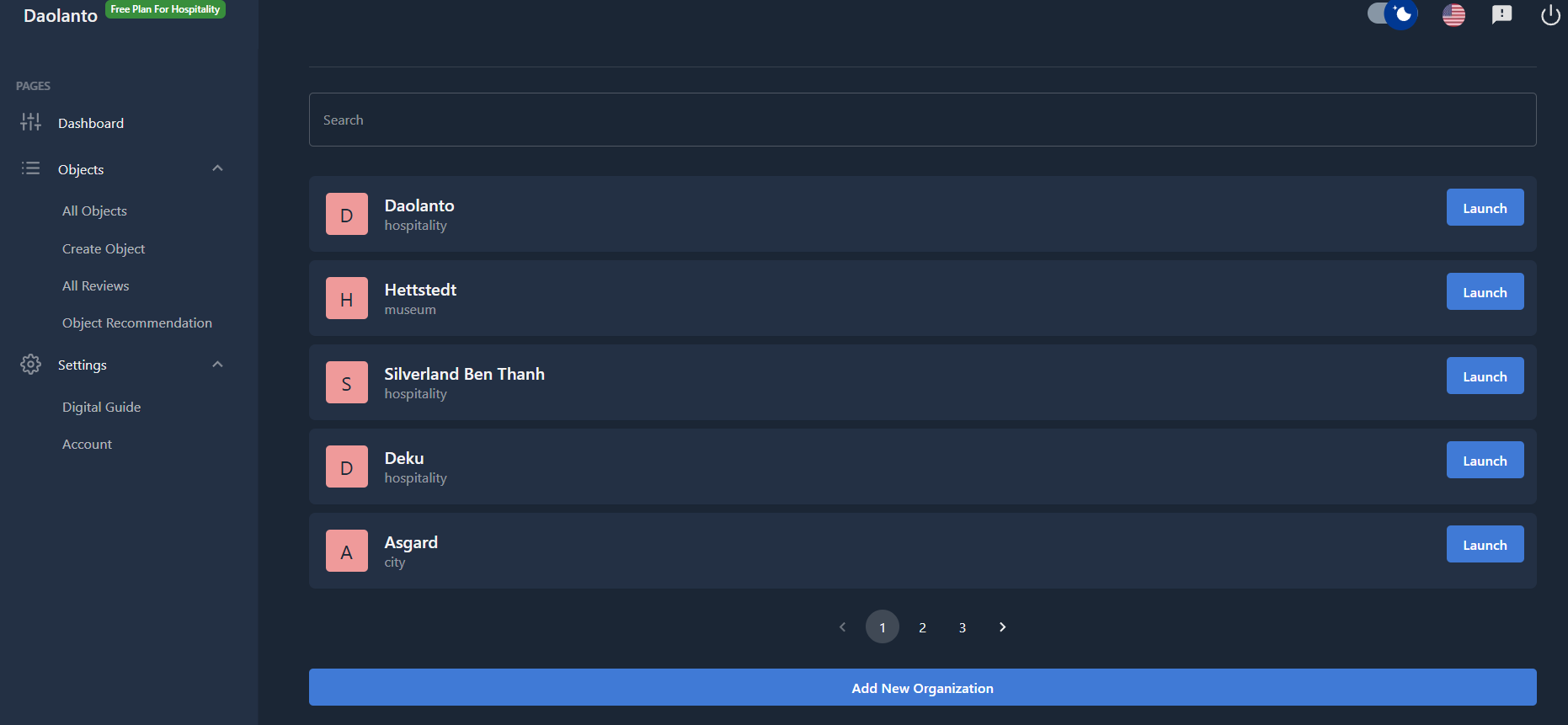
The Manage Organizations page shows all organizations you belong to or have created.
From here you can:
- Open (launch) an organization
- Search for an organization
- Create a new organization
This is useful if you manage more than one museum, city guide, zoo, or attraction.
Organization List
Each row shows:
- Organization name
- Organization type (museum, city, zoo, etc.)
- Launch button
Launch an Organization
Click the Launch button next to an organization.
What happens:
- You switch into that organization
- The dashboard loads with that organization’s data
- All objects, settings, and guides now belong to that organization
You can switch back anytime using this page.
Search Organizations
Use the Search box at the top.
You can search by:
- Organization name
- Partial name (first few letters)
This is helpful when you have many organizations.
Add New Organization
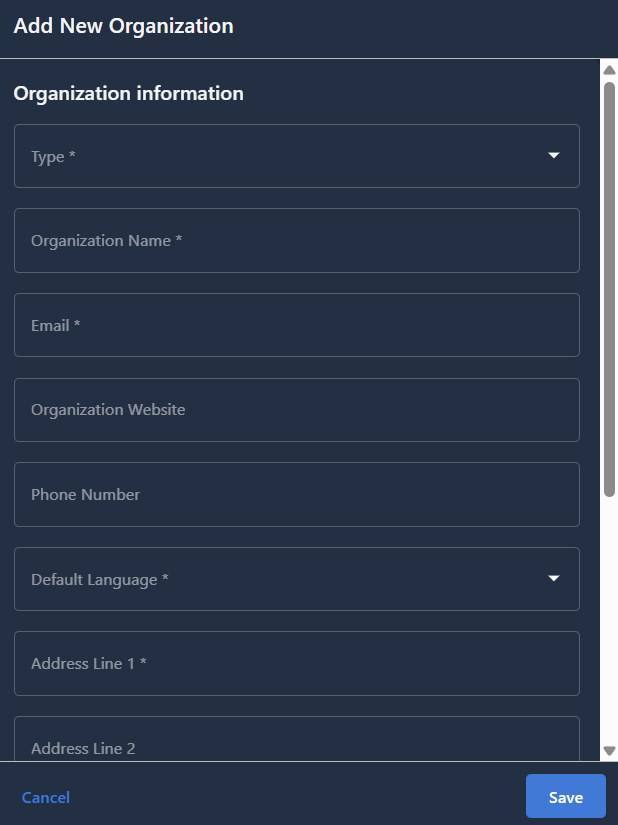
Click the Add New Organization button at the bottom.
You will be guided through a simple form where you enter:
- Organization type
- Organization name
- Address
- Default language
- Other basic details
After saving:
- A new organization is created
- You become the owner of that organization
- You can start adding objects and configuring the guide
When to Create Multiple Organizations
Create separate organizations if:
- You manage multiple museums or attractions
- You operate in different cities
- You want separate guides for different places
Each organization has its own:
- Objects
- Languages
- Settings
- Guide design
- Payments
They are completely independent.
Tips
- Always double-check which organization you are currently in
- Use clear organization names
- Keep organization details updated