Object Recommendation
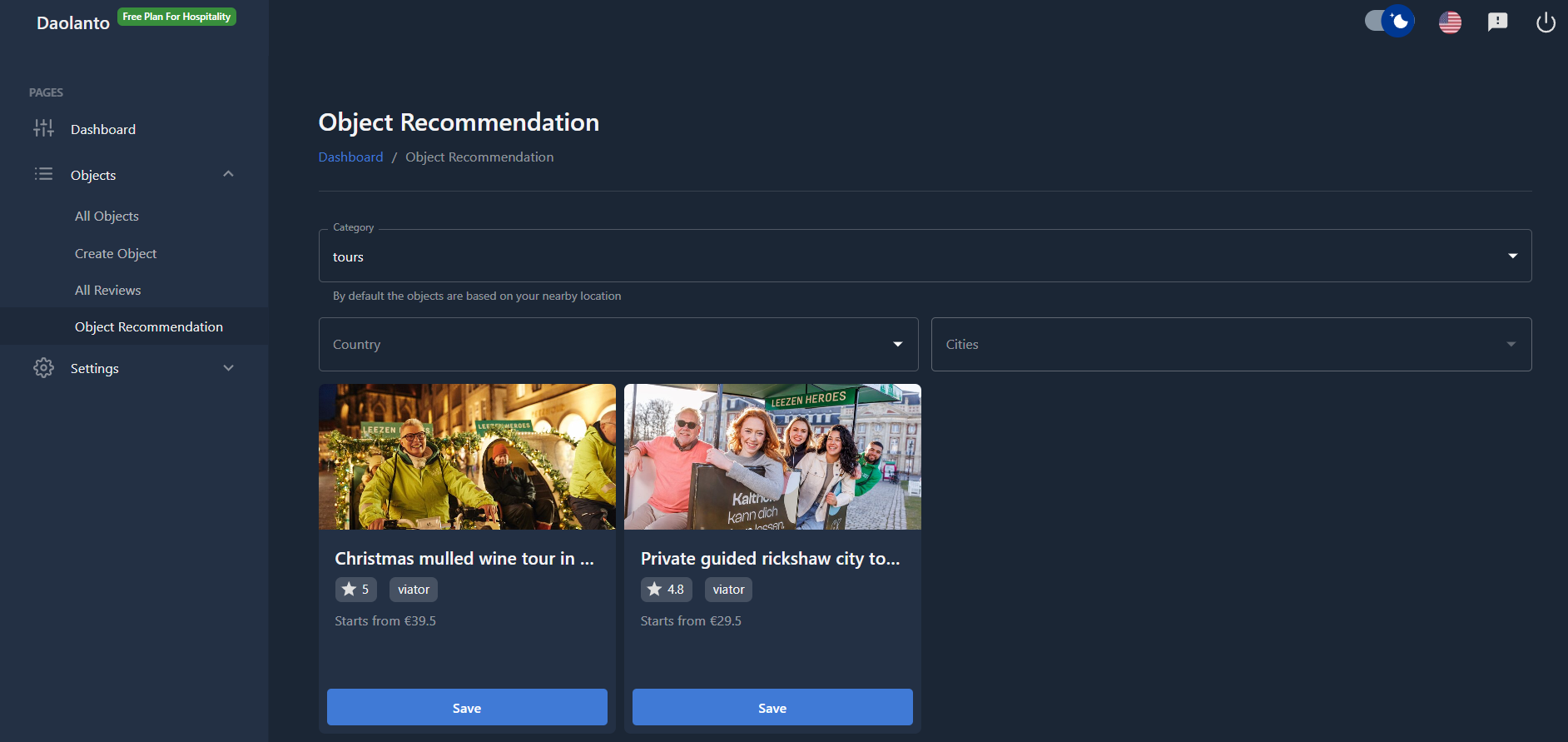
The Object Recommendation page helps you discover ready-made objects based on location and category, and save them directly into your guide.
This allows you to quickly add useful content without creating everything manually.
How Recommendations Are Generated
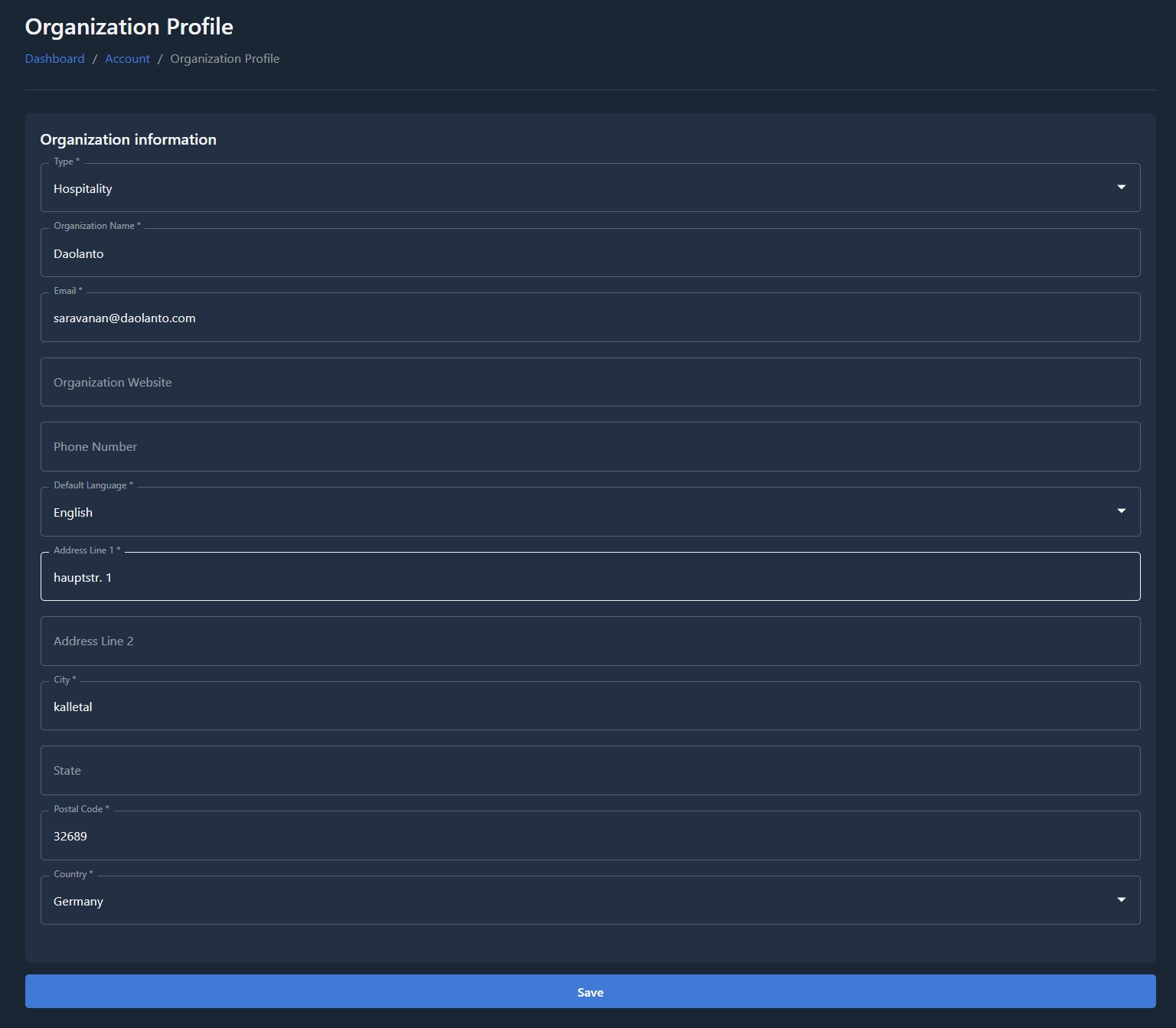
By default, recommendations are shown based on:
- The organization address you provided in your account setup
- Nearby locations around that address
This means you will automatically see objects related to your area.
Filters
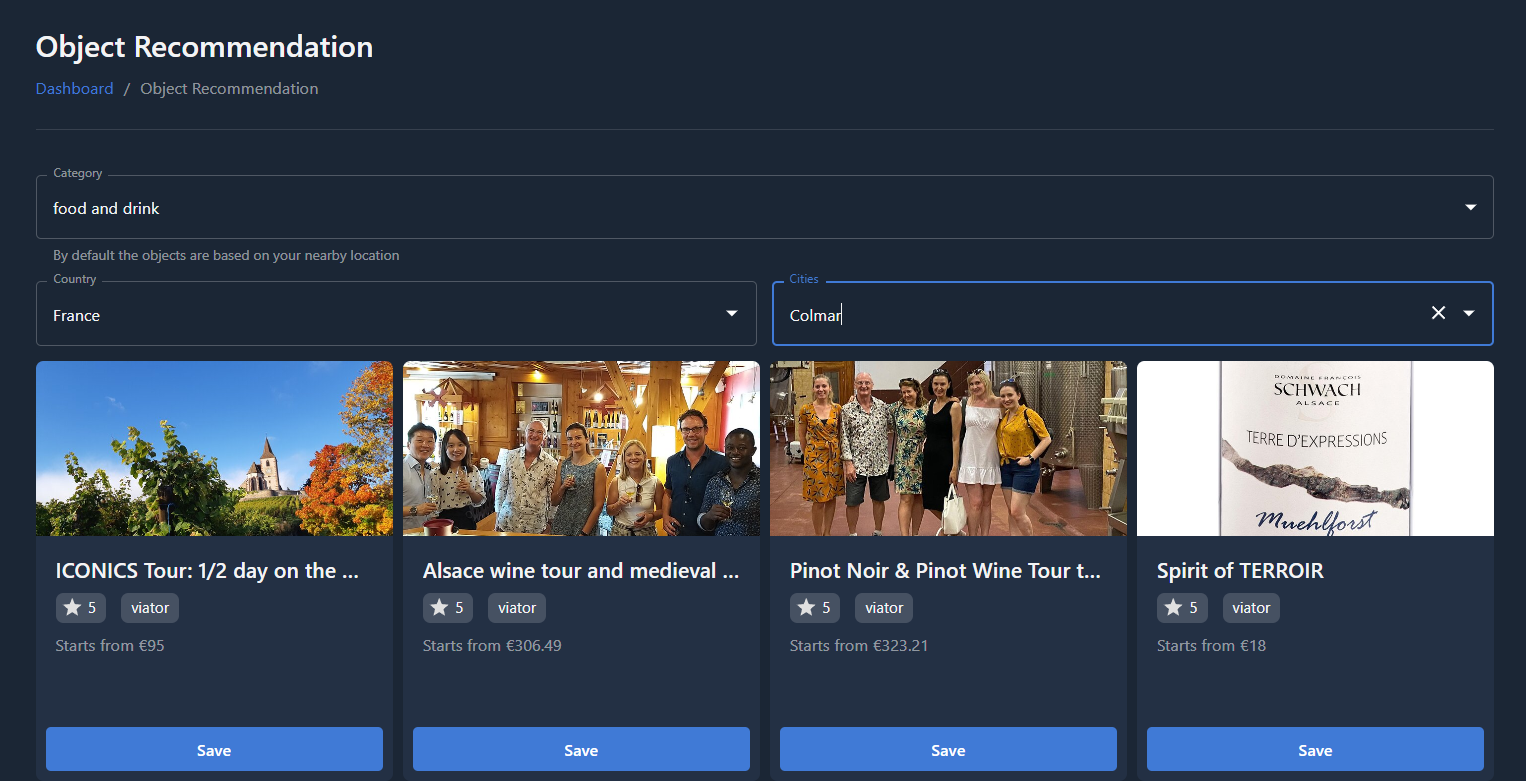
At the top of the page, you can refine recommendations using filters:
Category
Select what type of objects you want to see.
Examples:
- Tours
- Attractions
- Food
- Activities
Country
Choose a country to view recommendations from that location.
Cities
Choose a city to further narrow down results.
Using these filters lets you explore recommendations beyond your nearby area if needed.
Recommendation Cards
Each card represents a recommended object.
Each card may show:
- Image
- Object title
- Rating
- Provider/source
- Starting price (if applicable)
Save Object
Each card contains a Save button.
Clicking Save:
- Adds the object to your CMS
- Creates it as a new object in your guide
- Makes it visible in Objects → All Objects
After saving, you can edit the object like any other object in your CMS.
Editing Limitations (Free Plan)
For free plan users:
- Recommended objects cannot be edited
- They can only be saved and used as-is
This helps you quickly populate your guide with content, even without manual editing.
(Editing may be available in higher plans, if applicable.)
Typical Use Cases
- Quickly add popular tours and attractions
- Fill gaps in your guide
- Test new categories of content
- Expand coverage in new cities
Best Practice
- Start with nearby recommendations first
- Save only objects relevant to your guide
- Use filters to explore additional areas
- Review saved objects inside All Objects after importing