Tags Priority
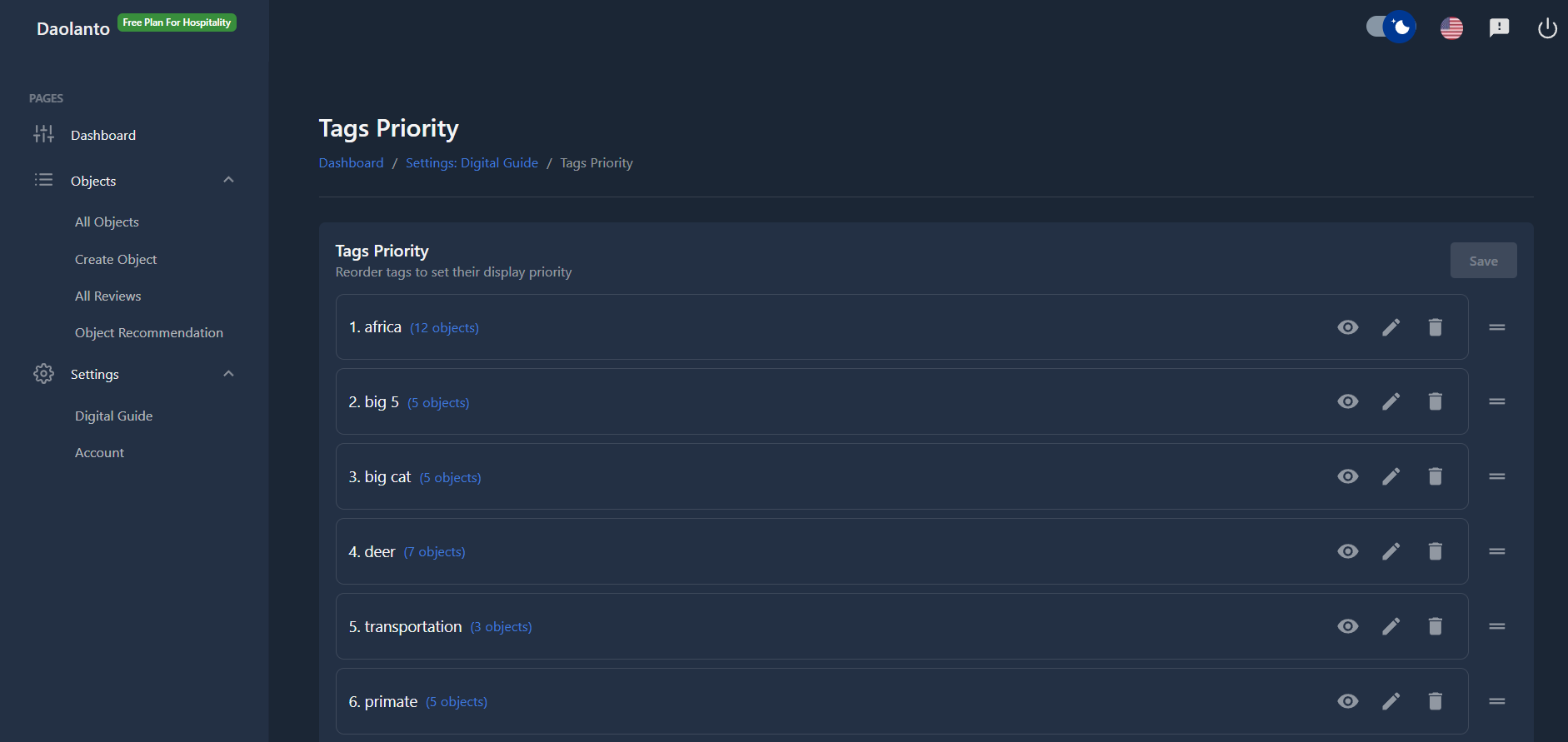
The Tags Priority page allows you to control:
- Which tags appear in your guide
- The order in which tags are shown
- Whether a tag is visible or hidden
- Rename or delete tags
Think of tags as categories that group similar objects together.
Example tags:
- Tours
- Activities
- Food and Drink
- History
This page helps you organize these categories in the order that makes the most sense for your visitors.
Tags List
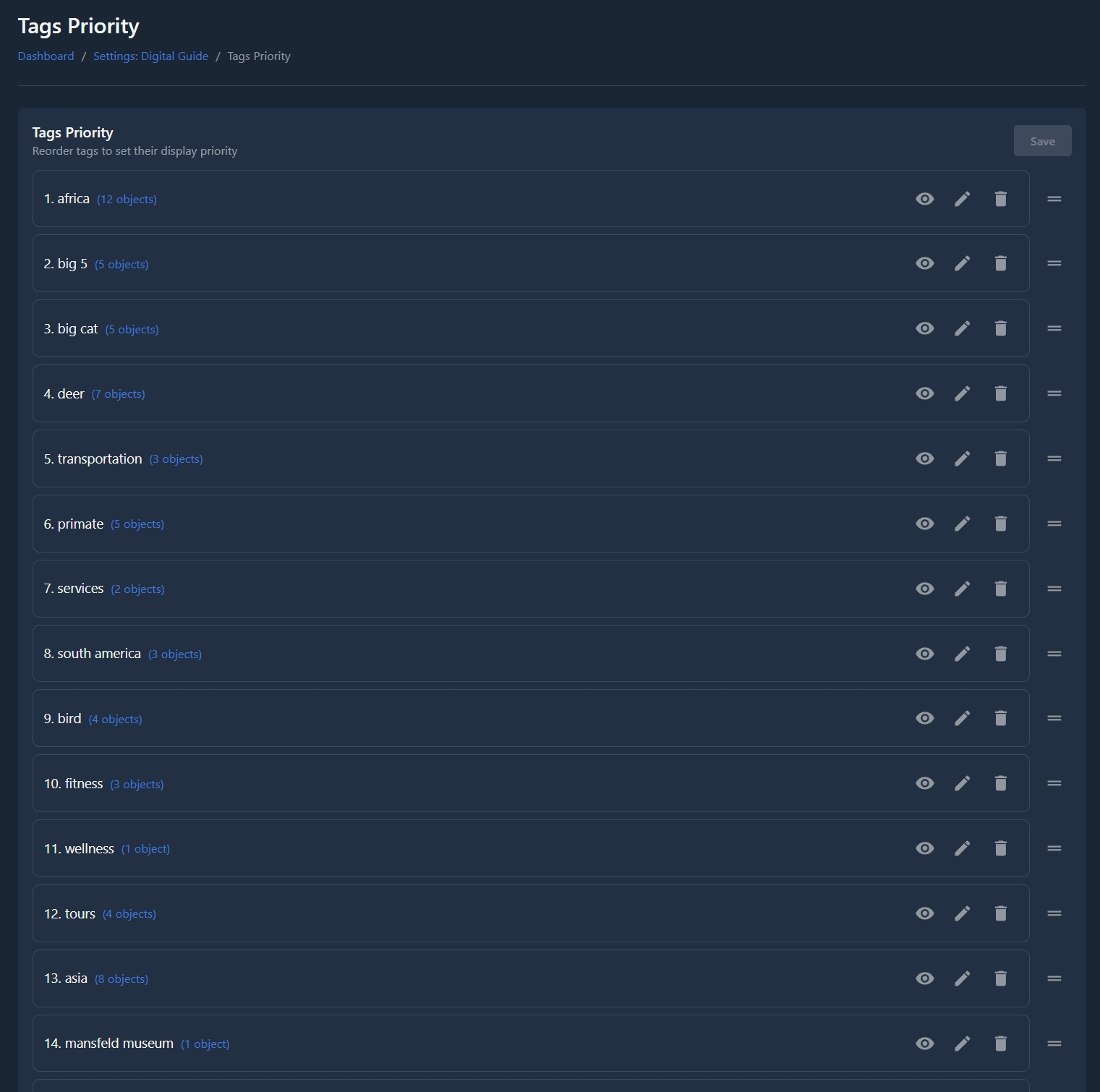
You will see a list of all tags.
Each tag shows:
- Tag name
- Number of objects using that tag
Example:
activities (22 objects)
This means 22 objects are currently assigned to the activities tag.
Reordering Tags
You can change the order of tags by dragging them up or down.
Tags at the top:
- Appear first in the guide
- Get more visibility
After arranging, click Save.
Hide / Show Tag
Click the eye icon to hide or show a tag.
- Hidden tag → Not visible in the guide
- Visible tag → Shown in the guide
Hiding does NOT delete the tag or its objects.
Edit Tag
Click the edit (pencil) icon to rename a tag.
Useful when:
- Fixing spelling
- Changing wording
- Making names clearer
Delete Tag
Click the delete (trash) icon to remove a tag.
Important:
- The tag itself is deleted
- The tag is removed from all connected objects
- Objects are NOT deleted
Use carefully.
Managing Objects Inside a Tag
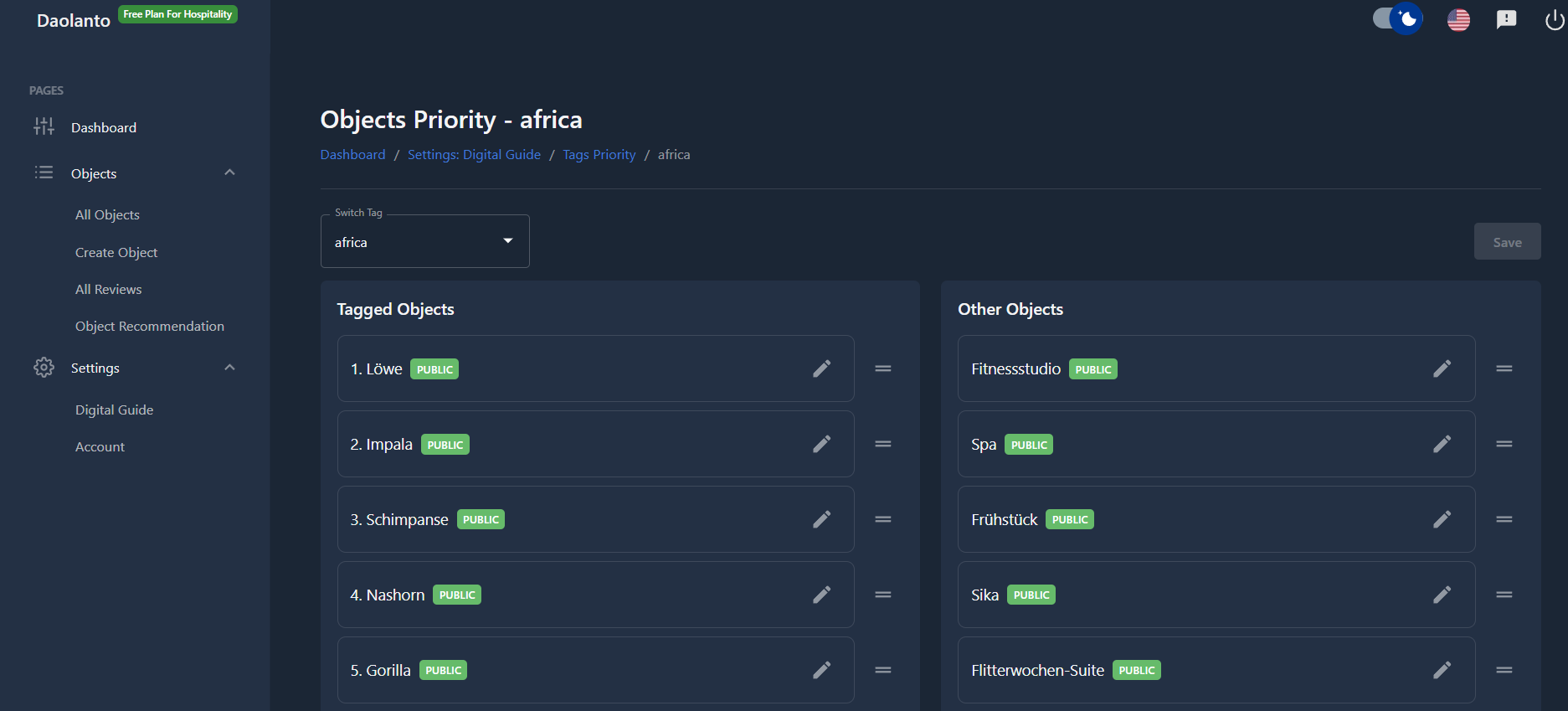
Click any tag to open its Objects Priority page.
This page controls:
- Which objects belong to this tag
- The order of objects inside the tag
Objects Priority (Inside a Tag)
This page is divided into two columns:
Tagged Objects (Left Side)
Objects that already belong to this tag.
These objects will appear inside this tag in the guide.
Other Objects (Right Side)
Objects that do NOT currently have this tag.
Think of this as a pool of available objects.
Add Object to Tag
To add an object:
- Find the object in Other Objects
- Drag it into Tagged Objects
Now the object belongs to this tag.
Remove Object from Tag
To remove an object:
- Drag it from Tagged Objects back to Other Objects
The object will no longer belong to this tag.
Reordering Objects
Inside Tagged Objects, you can drag objects up or down.
Objects at the top:
- Appear first inside the tag
- Get more attention from visitors
Click Save after rearranging.
Switch Tag
At the top, you may see a dropdown to switch to another tag.
This lets you manage multiple tags without returning to the previous page.
Simple Workflow Example
- Open Tags Priority
- Move important tags to the top
- Hide tags you don’t want visitors to see
- Click a tag
- Add objects to it
- Arrange object order
- Save
This controls what visitors see and in what order.
Best Practice
- Keep tag names simple
- Limit number of visible tags
- Put most important tags at the top
- Review object order regularly
- Avoid deleting tags unless necessary