Collections Priority
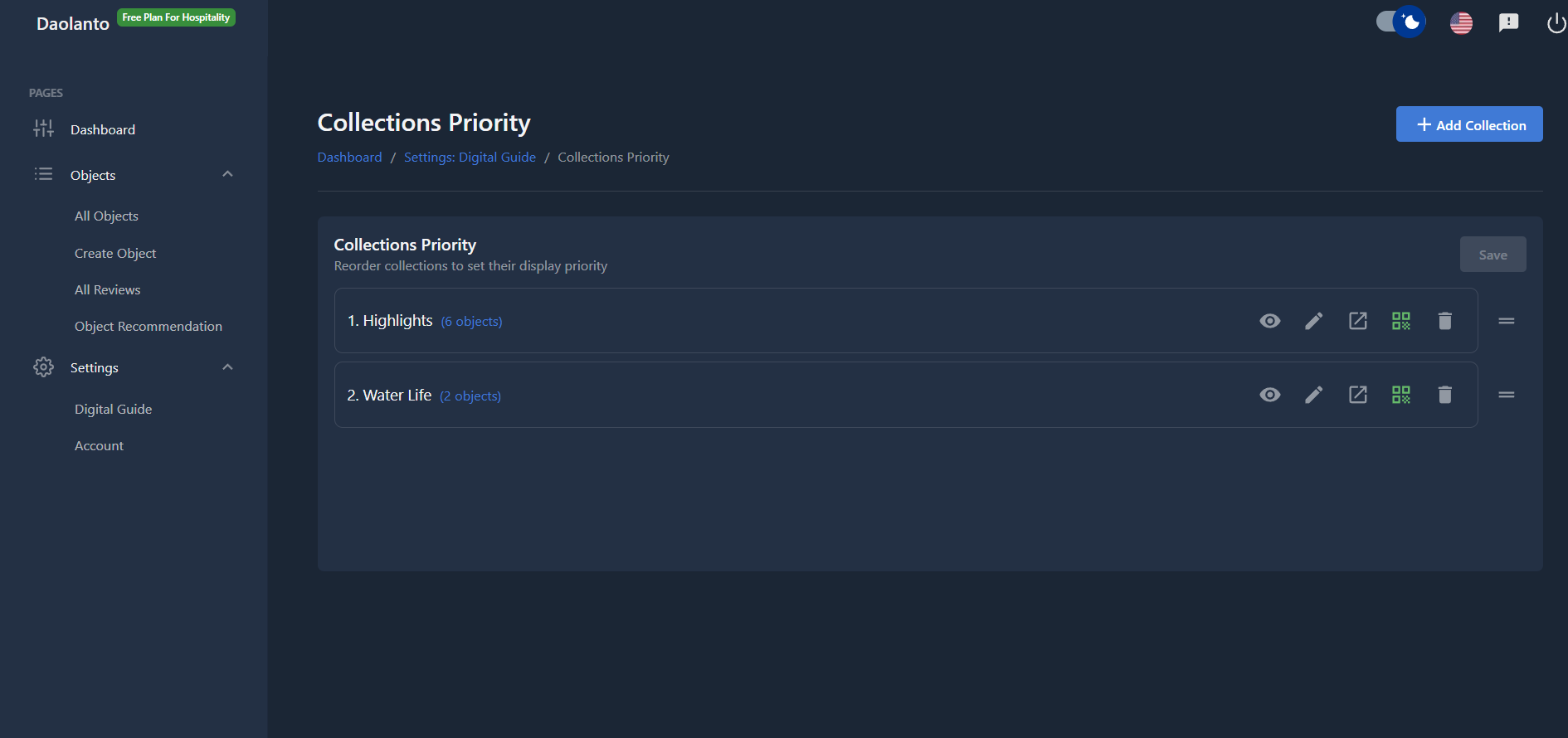
The Collections Priority page allows you to manage and organize collections in your guide.
Collections are groups of objects that you curate manually.
Examples of collections:
- Highlights
- Must See
- Family Favorites
- Water Life
From this page, you can:
- Create new collections
- Edit existing collections
- Delete collections
- Control the order in which collections appear
Collections List
You will see a list of all collections.
Each collection shows:
- Collection name
- Number of objects inside it
Example:
Highlights (16 objects)
Reordering Collections
You can drag collections up or down in the list.
Collections at the top:
- Appear first in the guide
- Get more attention from visitors
After arranging, click Save.
Add Collection
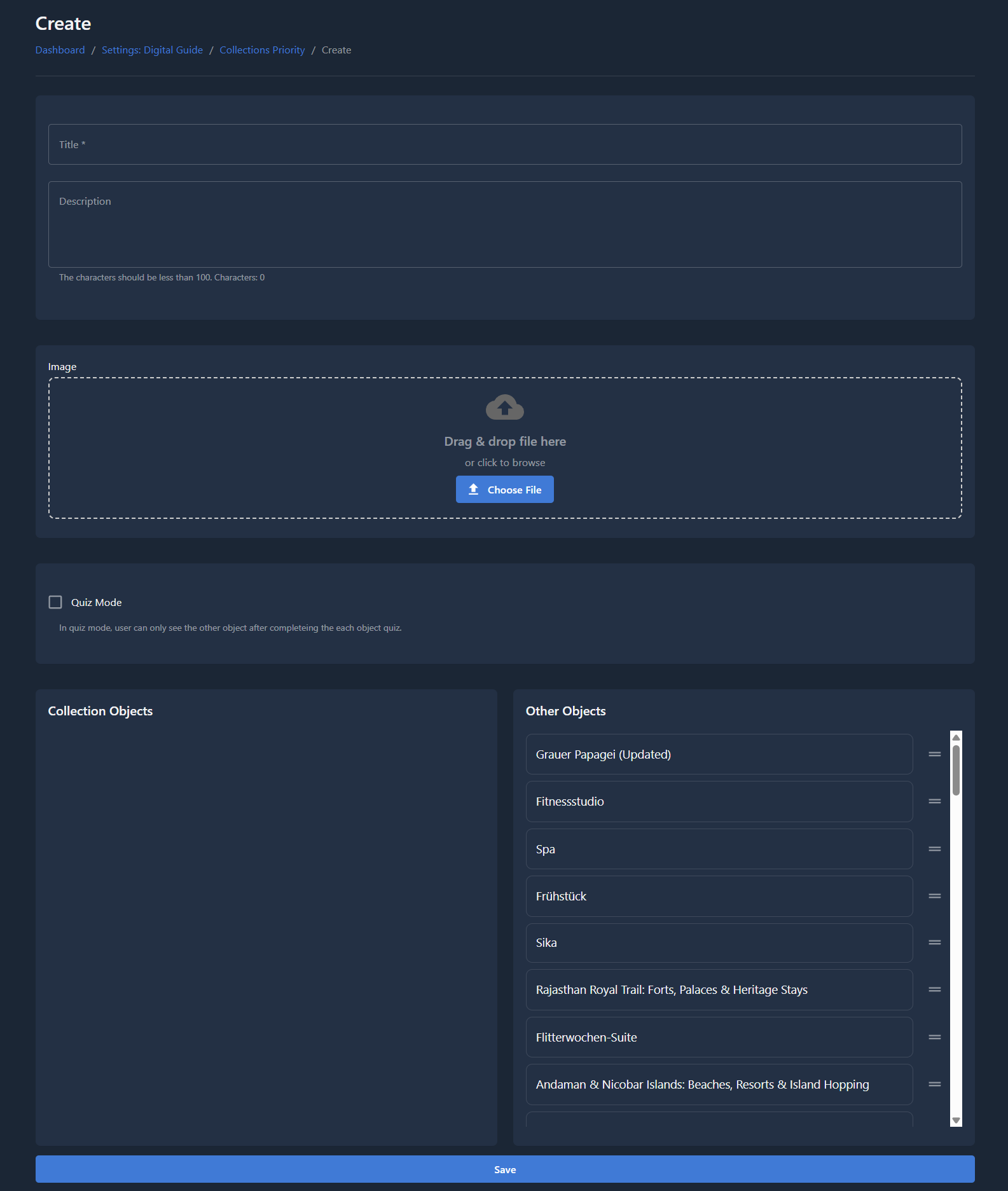
Click Add Collection to create a new collection.
You will be taken to the collection editor.
Hide / Show Collection
Click the eye icon to hide or show a collection.
- Hidden → Not visible in the guide
- Visible → Shown in the guide
Hiding does not delete the collection.
Edit Collection
Click the edit (pencil) icon to open the collection editor.
Here you can:
- Change title
- Change description
- Upload or replace image
- Add or remove objects
- Reorder objects
Delete Collection
Click the delete (trash) icon to remove a collection.
Important:
- The collection is deleted
- Objects inside are NOT deleted
- Objects simply return to normal listing
Use carefully.
Edit Collection
When editing a collection, you can customize both its information and its objects.
Basic Information
Title
Name of the collection shown in the guide.
Description
Short explanation of what the collection contains.
Image
Image representing the collection.
Quiz Mode
A checkbox in the collection editor settings:
- Enabled: The collection runs as a scavenger hunt in the digital guide. Visitors only see objects they have unlocked by completing the previous object's quiz. Object order in Collection Objects defines the unlock sequence.
- Disabled (default): All objects in the collection are visible at once, with no quiz gating.
Helper text in the CMS: visitors can only open the next object after completing each object's quiz.
How it works with object quizzes:
- Enable Quiz Mode on the collection
- Order objects in Collection Objects (first object = starting point)
- Add Quiz Questions on each object (see Objects Creation)
- Visitors answer questions on the story page; when all questions for an object are answered correctly, the next object appears in the collection view
Objects without quiz questions still unlock the next step when quiz mode is on.
Collection Objects (Left Side)
Objects already added to this collection.
These will appear inside this collection in the guide.
Other Objects (Right Side)
Objects that are not currently part of this collection.
Think of this as a library of available objects.
Add Object to Collection
- Find an object in Other Objects
- Drag it into Collection Objects
The object is now part of the collection.
Remove Object from Collection
- Drag an object from Collection Objects back to Other Objects
The object is removed from the collection.
Reorder Objects Inside Collection
Inside Collection Objects, drag objects up or down.
Objects at the top:
- Appear first inside the collection
- Get more visibility
Click Save after arranging.
Simple Workflow Example
- Open Collections Priority
- Add a new collection
- Edit its title, description, and image
- Add objects to the collection
- Arrange object order
- Arrange collection order
- Save
This controls how collections and their content appear to visitors.
Best Practice
- Use collections for featured or curated content
- Keep titles simple
- Avoid too many collections
- Place important collections at the top
- Review collections regularly
- Use Quiz Mode for guided tours or educational trails where visitors should progress in order