Objects Creation in CMS
This documentation covers the comprehensive process of creating objects in the CMS. Objects are the core content units that appear in the guide, and the creation form provides multiple features to help you structure and manage your content effectively.
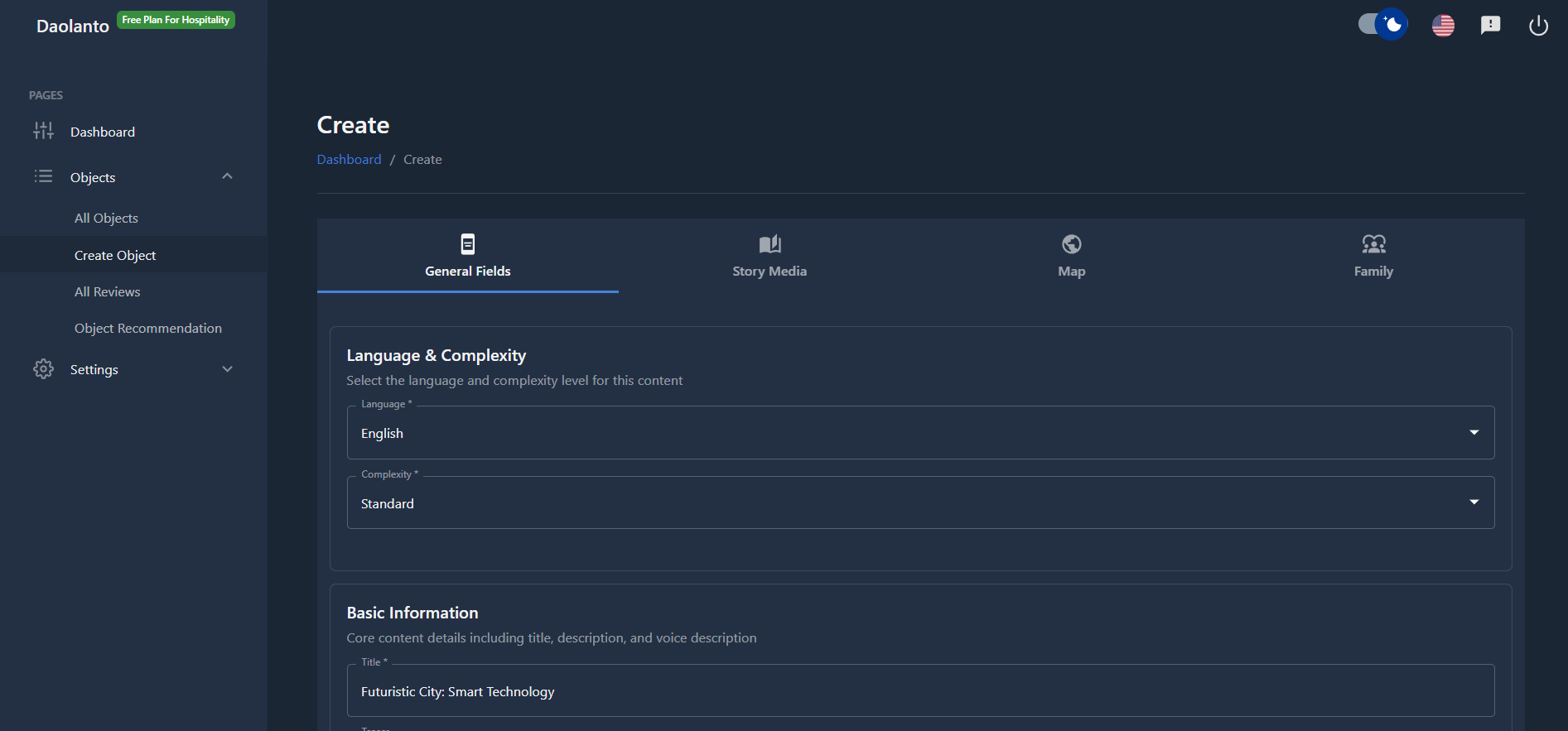
General Fields Tab
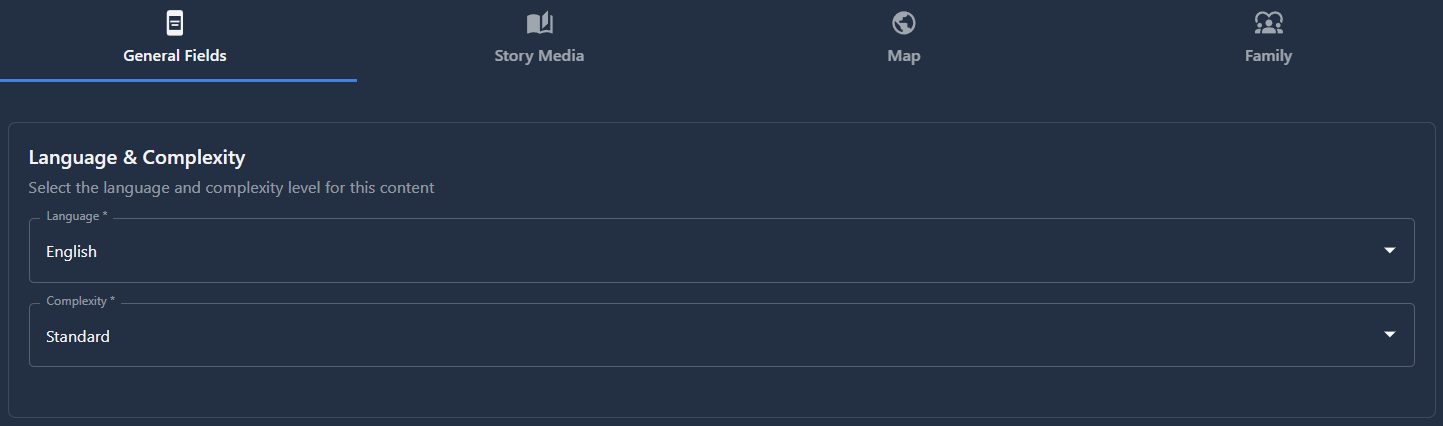
The General Fields tab allows you to set foundational attributes for your object:
- Language: Specifies the language in which the object content is written
- Complexity: Defines the language complexity and reading level of the object content
- Simple: Uses simple, easy-to-understand words suitable for general audiences, children, or non-native speakers. Think of everyday language that anyone can grasp quickly.
- Standard: Uses moderate language with balanced vocabulary (default). This is appropriate for most readers and provides a comfortable reading experience for the average audience.
- Complex: Uses advanced vocabulary and literature-level text with sophisticated language structures. Ideal for academic audiences, subject matter experts, or readers who prefer detailed, formal writing.
- If you're unsure, leave it as Standard which is the default setting
- Advantage: This feature allows you to create the same object for all kinds of readers—from beginners to experts—ensuring your content is accessible to diverse audiences with different reading levels and language proficiency.
Basic Information
This section contains the core content fields for your object:
Content Fields
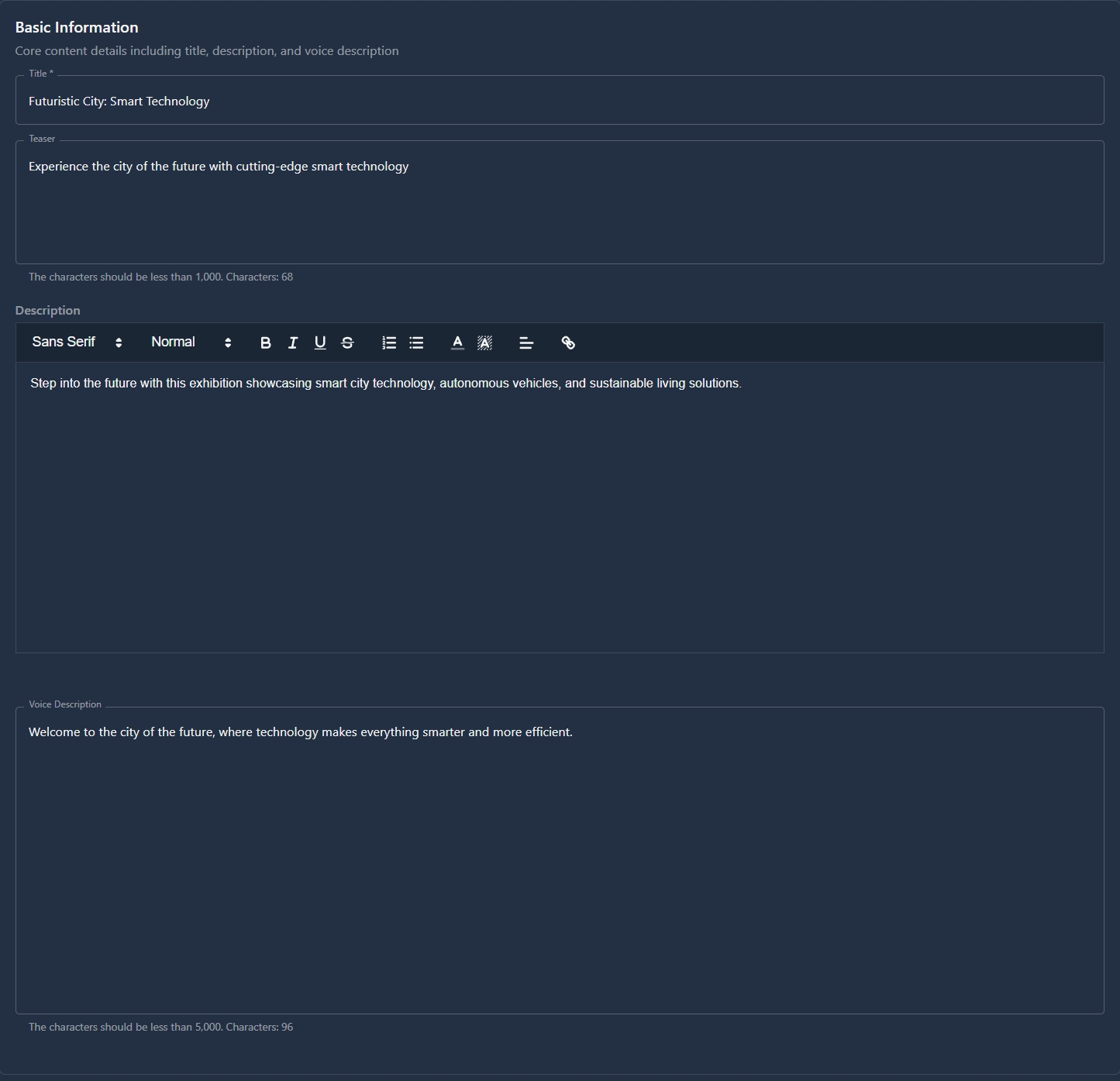
- Title: The main heading for your object
- Description: A rich text field for detailed content about the object
- Teaser: A brief preview text that appears on cards in the explore view of the guide
- Voice Description: Enables audio functionality that uses technology to convert text into audio format, allowing guide users to listen to the content
- Accessibility for Vision Impairment: This feature is essential for readers who have sight problems or visual disabilities, providing them with an intuitive experience to access information they cannot read on screen.
- Hands-Free Experience: Perfect for people who want to enjoy the object while looking at it directly, rather than staring at their phone screen. Users can listen to the information while keeping their eyes on the actual exhibit, artwork, landmark, or attraction.
- Convenience: Allows visitors to multitask and absorb information without needing to constantly hold and read their phone, creating a more natural and immersive guide experience.
Location Information

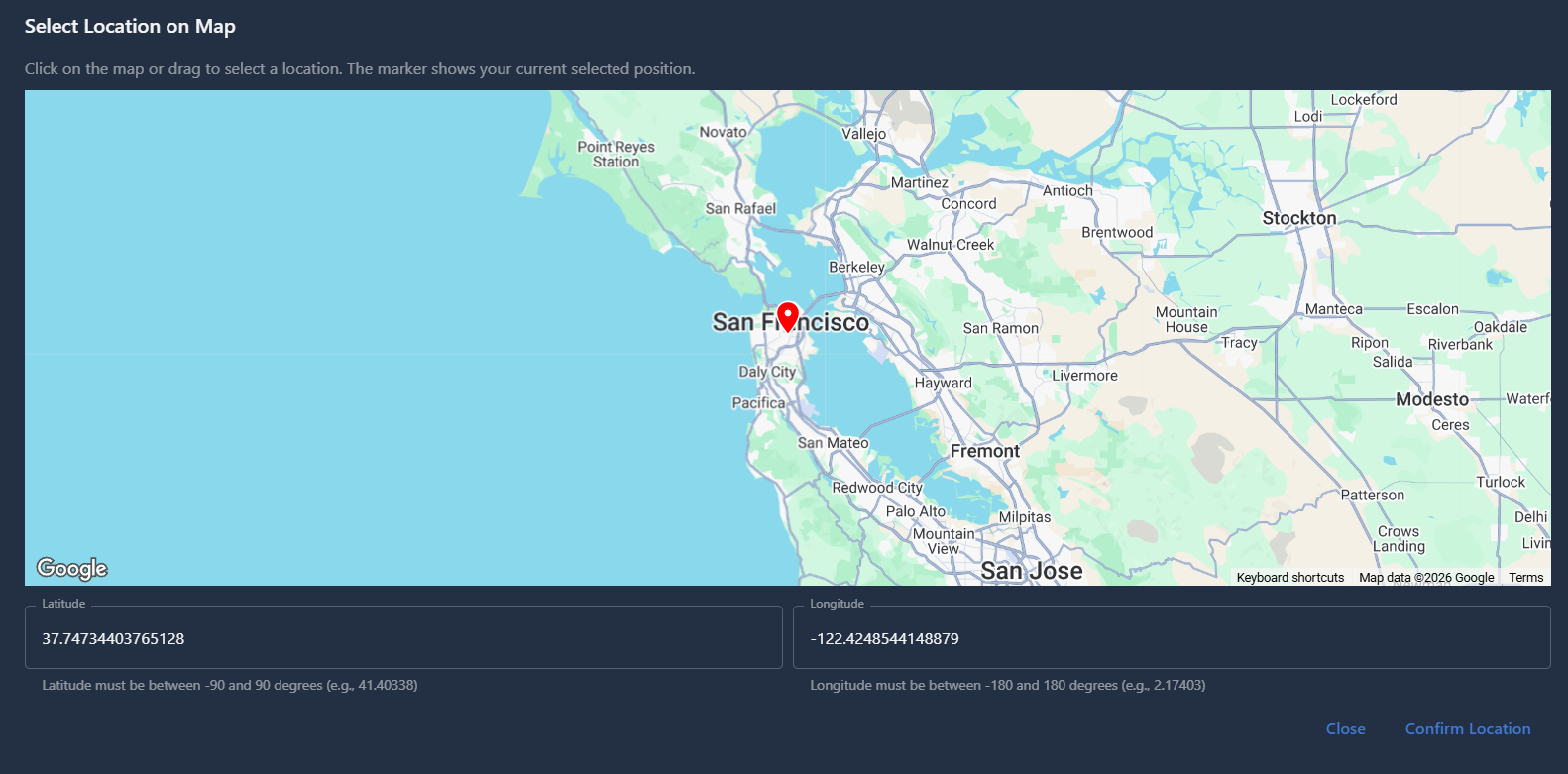
- Latitude (lat) and Longitude (lng): Specify the geographic location of the object
- Enter coordinates manually as text
- Or select the location on a map by dragging and dropping a pin
Availability
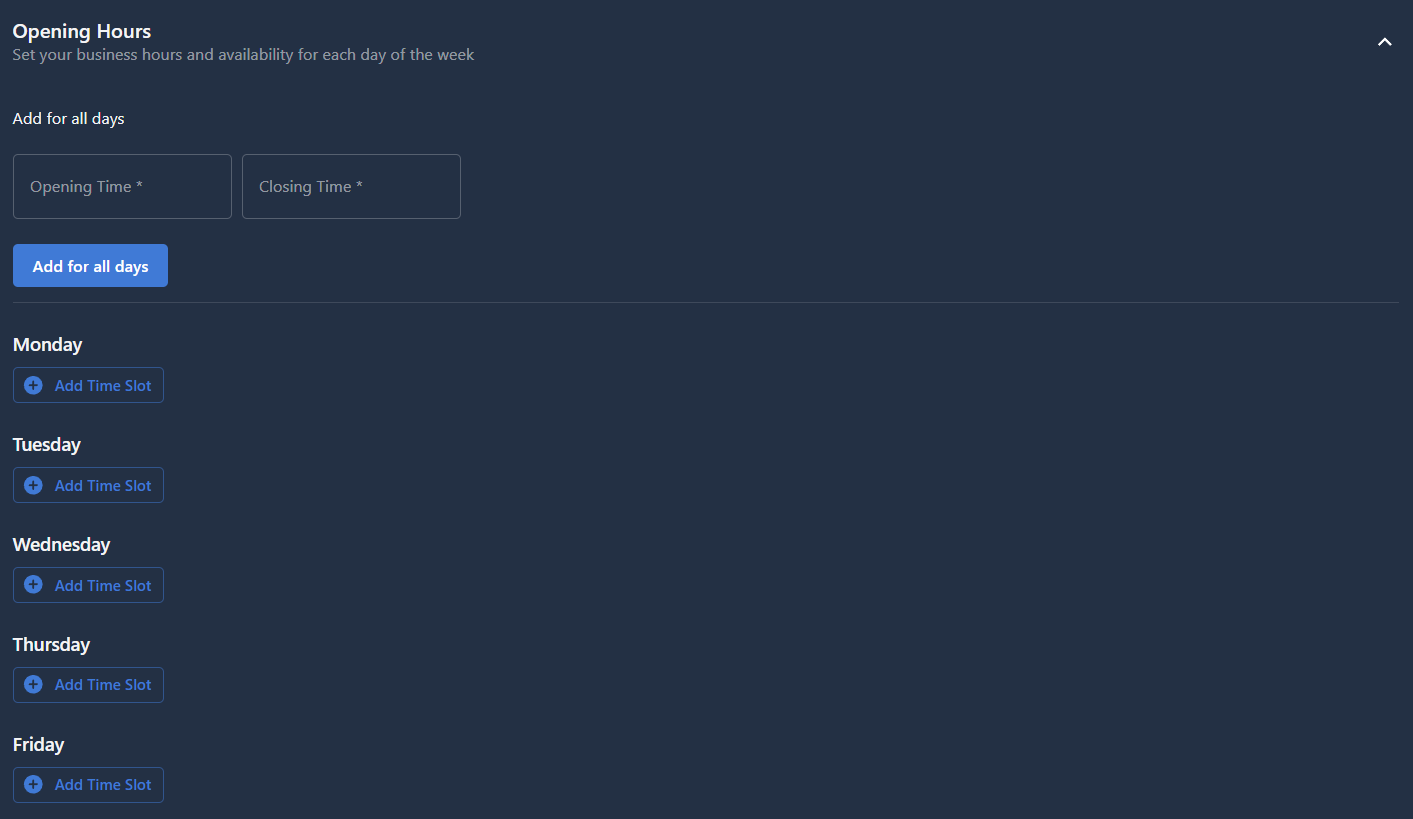
- Opening Hours: Set when the object is available or accessible
Content Settings
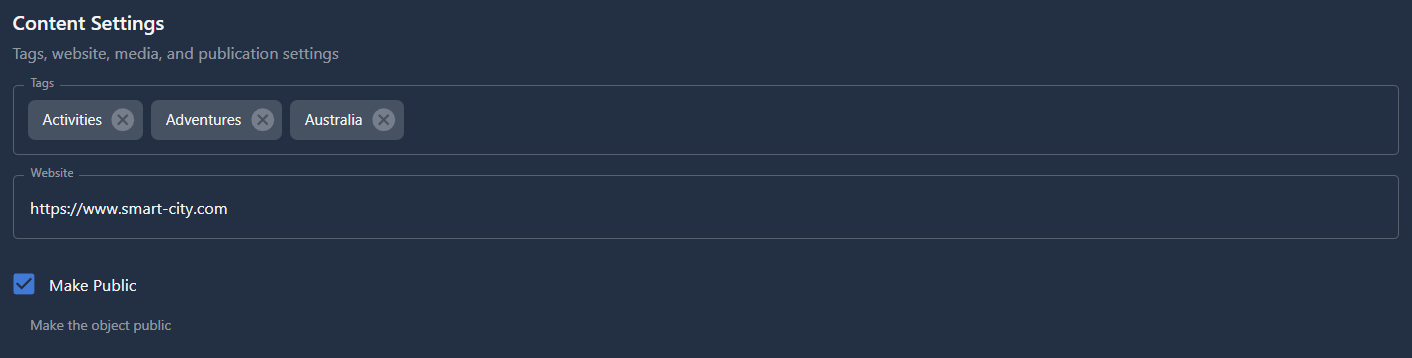
Manage how your object is organized and displayed:
- Tags: Categorize and organize your objects for easier discovery
- Publication Settings: Control the visibility of your object
- Public: The object is visible in the guide
- Draft: The object is hidden and won't appear in the guide
- Website Link: Add an external URL for additional information or resources
Auto Translate Content

A powerful feature for premium users:
- Available for premium users only
- When enabled, automatically translates the entire object content into 70+ languages
- No manual translation work required
Media Assets
Story Cover
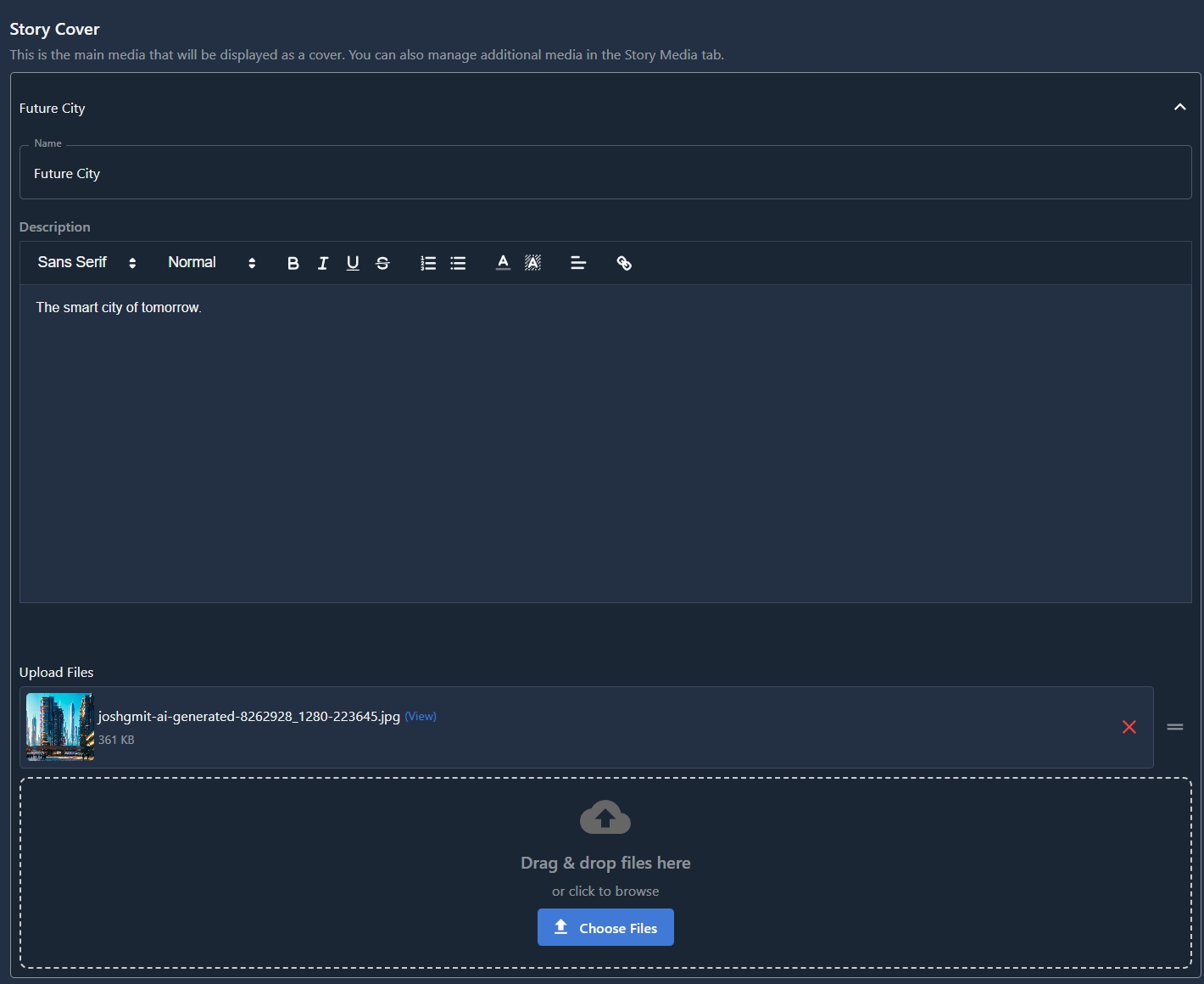
Create rich media experiences for your objects:
- Name: Title for the story cover
- Description: Rich text field for describing the media content
- Upload Options: Add multiple files including:
- Images
- Videos
- Audio files
- Document files
- Rearrange Files: Drag and drop uploaded assets to reorder them, giving you full control over how media appears
- Easy Management: Edit and delete story cover content at any time with simple, straightforward controls
Additional Fields
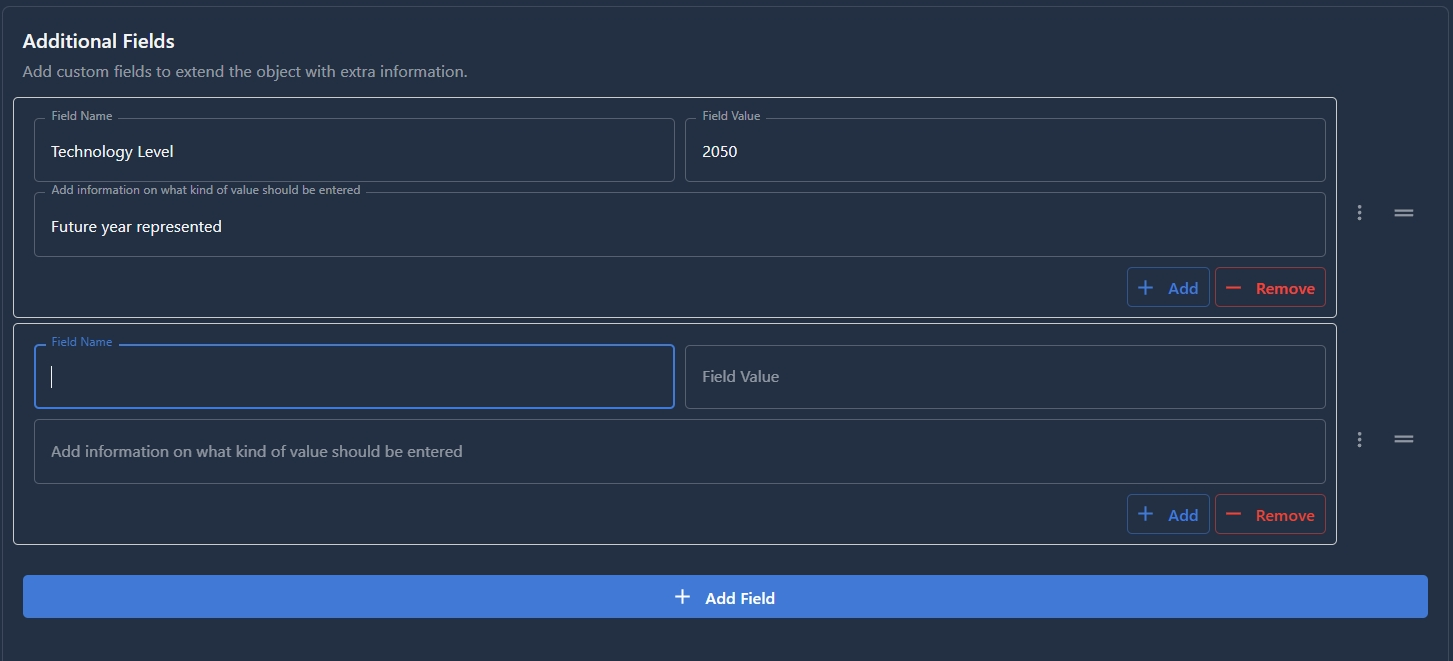
Add extra information to your object:
- Create custom fields for specific needs (for example: architect name, construction year, material type, or any other detail)
- Add any additional information that isn't covered by the standard form
- Rearrange Fields: Drag and drop additional fields to reorder them as needed
- Flexible structure to accommodate unique requirements
Story Media Tab
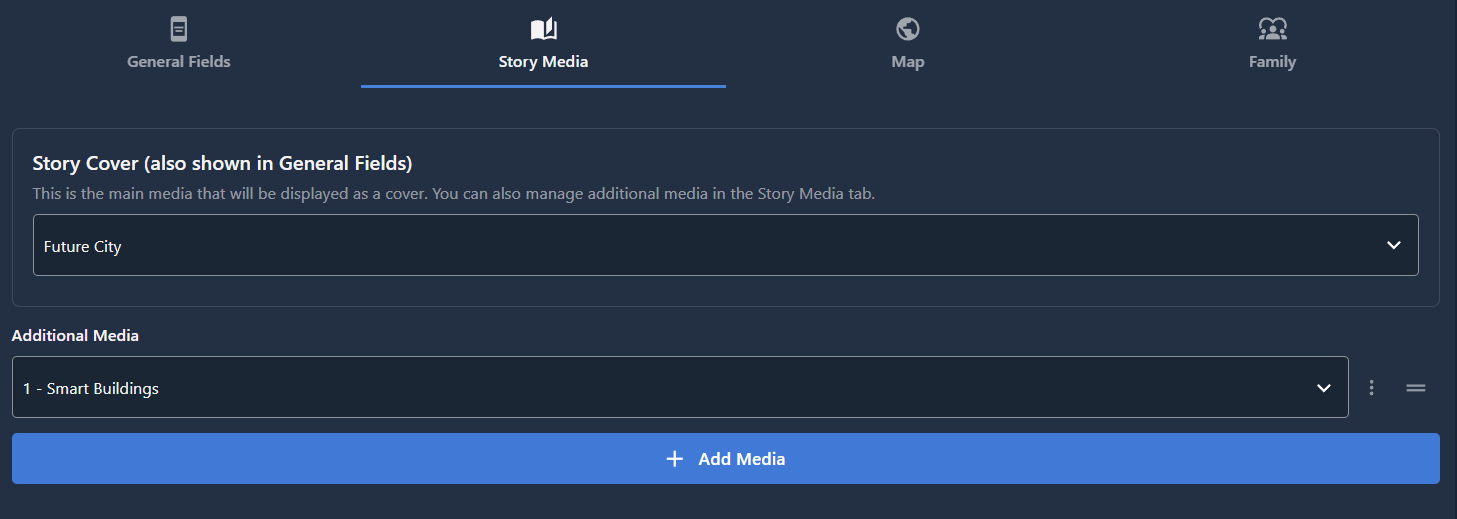
The Story Media tab provides comprehensive media management capabilities for your object:
Story Cover
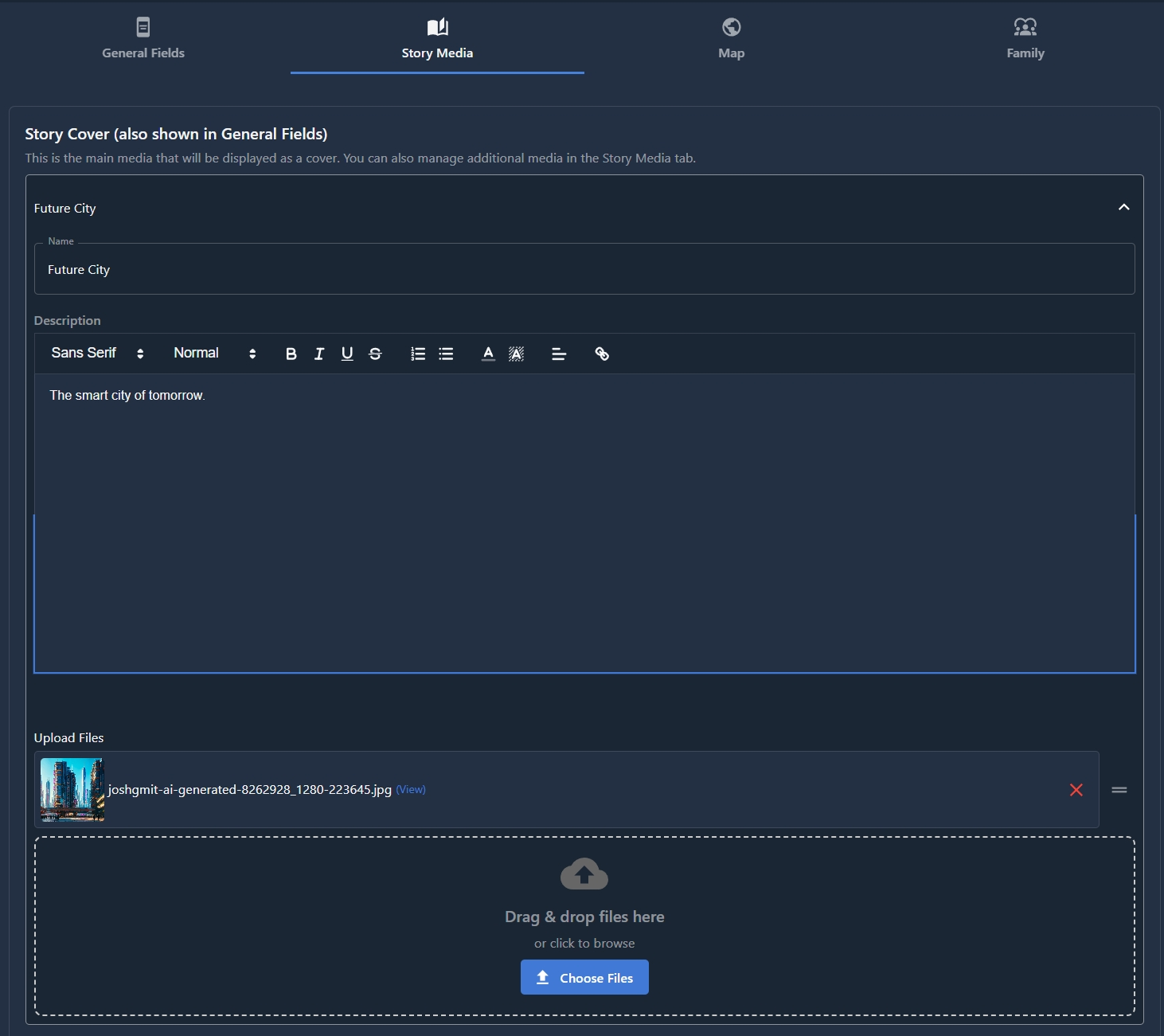
This is the same Story Cover field available in the General Fields tab:
- Name: Title for the story cover
- Description: Rich text field for describing the media content
- Upload Options: Add multiple files including:
- Images
- Videos
- Audio files
- Document files
- Rearrange Files: Drag and drop uploaded assets to reorder them, giving you full control over how media appears
Additional Media
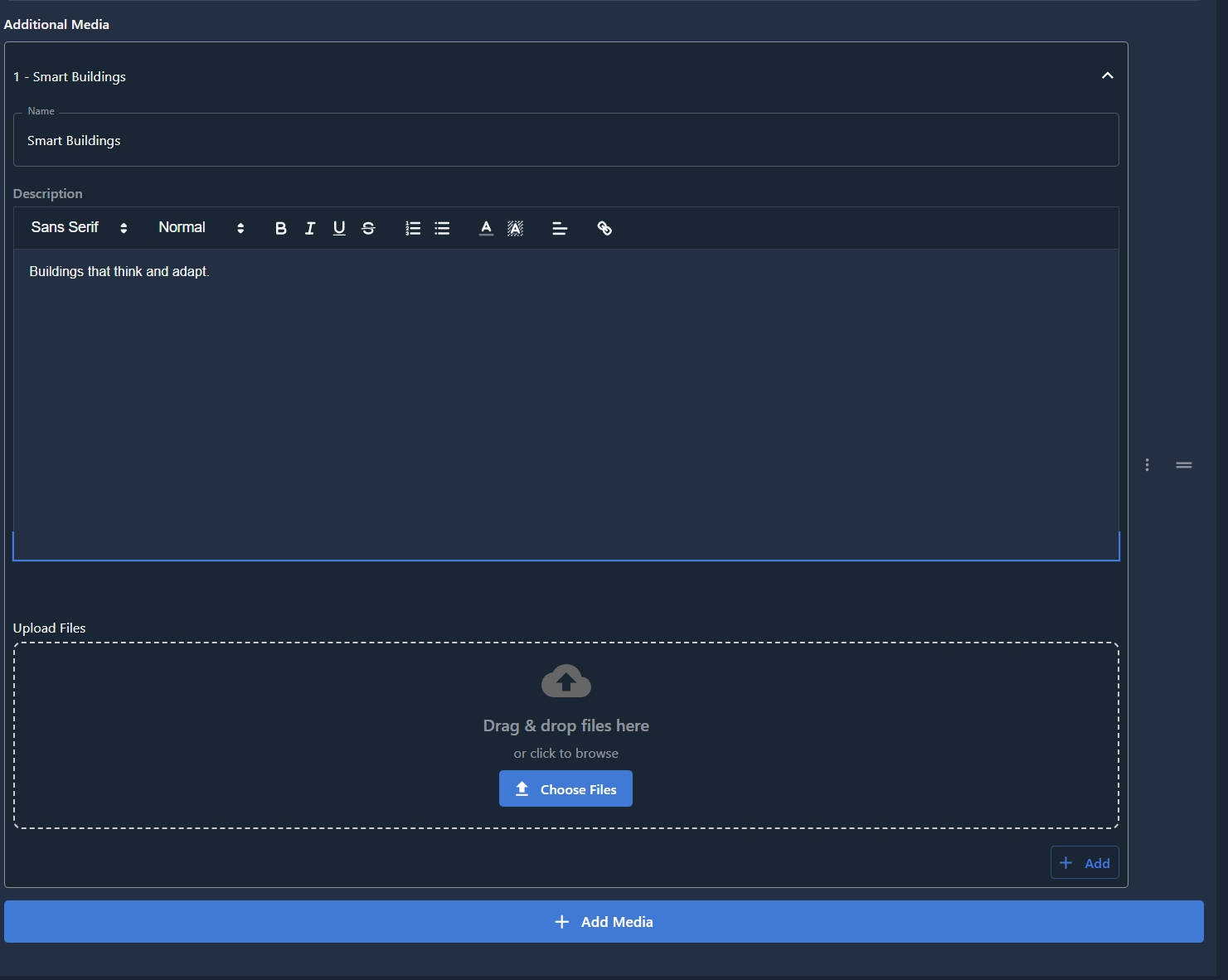
Create multiple organized media sections to showcase different aspects of your object:
- Multiple Media Sections: Add as many media sections as needed
- Each Section Includes:
- Name: Title for the media section
- Description: Rich text field to describe the media category
- Upload Multiple Files: Add numerous images, videos, and files within each section
- Rearrange Files: Drag and drop uploaded assets within each section to reorder them
- Add New Sections: Create additional media sections below existing ones to organize content by category or theme
- Rearrange Sections: Drag and drop entire media sections to reorder them as needed
- Easy Management: Edit and delete any media section at any time with simple, straightforward controls
This flexible structure allows you to organize media content logically and present it in the most effective order.
Quiz Questions Tab
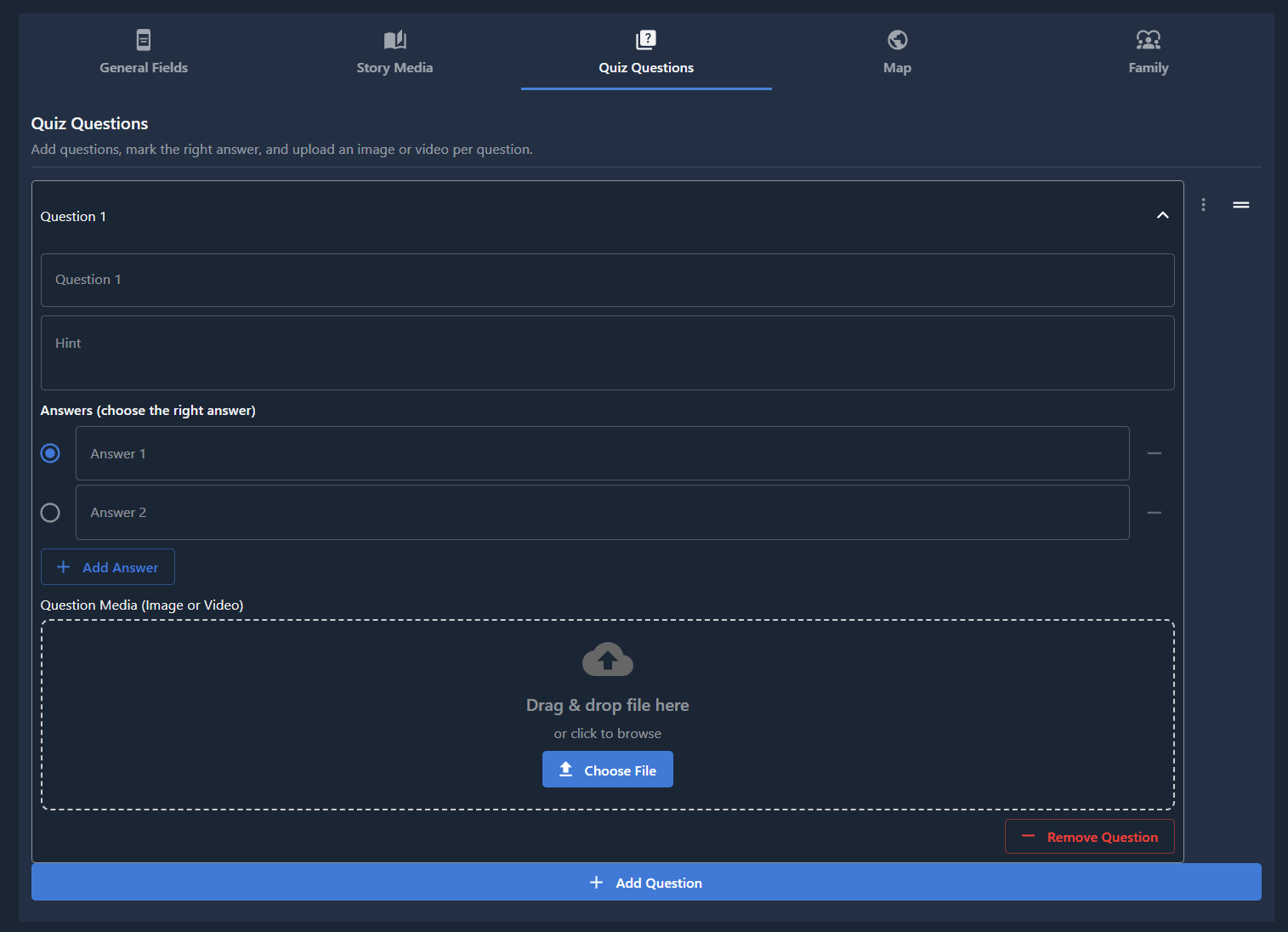
The Quiz Questions tab lets you add interactive questions for an object. When a collection has Quiz Mode enabled, visitors complete these questions on the object's story page to unlock the next object in that collection (see Collection Priority).
Each question is shown in an expandable panel. For every question you can configure:
- Question: The text visitors see in the scavenger hunt dialog
- Hint: Optional help text shown below the question
- Answers: Multiple choice options (at least two per question)
- Select the radio button next to one answer to mark it as the correct choice
- Use Add Answer to add more options
- Remove answers with the minus icon (you cannot go below two answers)
- Question Media (Image or Video): Optional image or video upload for the question
- In the digital guide, an image attached to a question is shown in the scavenger hunt dialog
Managing Questions
- Add Question: Appends a new empty question at the bottom
- Remove Question: Deletes a question from the object
- Reorder: Drag questions using the handle, or use the position menu to move a question to the top, bottom, after another question, or to a specific position
Quiz content is saved with the object like other tabs. When you edit an object in another language, you can maintain separate quiz questions per language.
Tips
- Mark exactly one correct answer per question so visitors can progress
- Put the first object in the collection first in Collection Objects order — in quiz mode, that object is always unlocked
- Objects with no quiz questions still allow progression when quiz mode is on (the next object unlocks automatically)
Map Tab
The Map Tab enables you to create interactive travel guides and route-based experiences for your objects.
Interface Layout
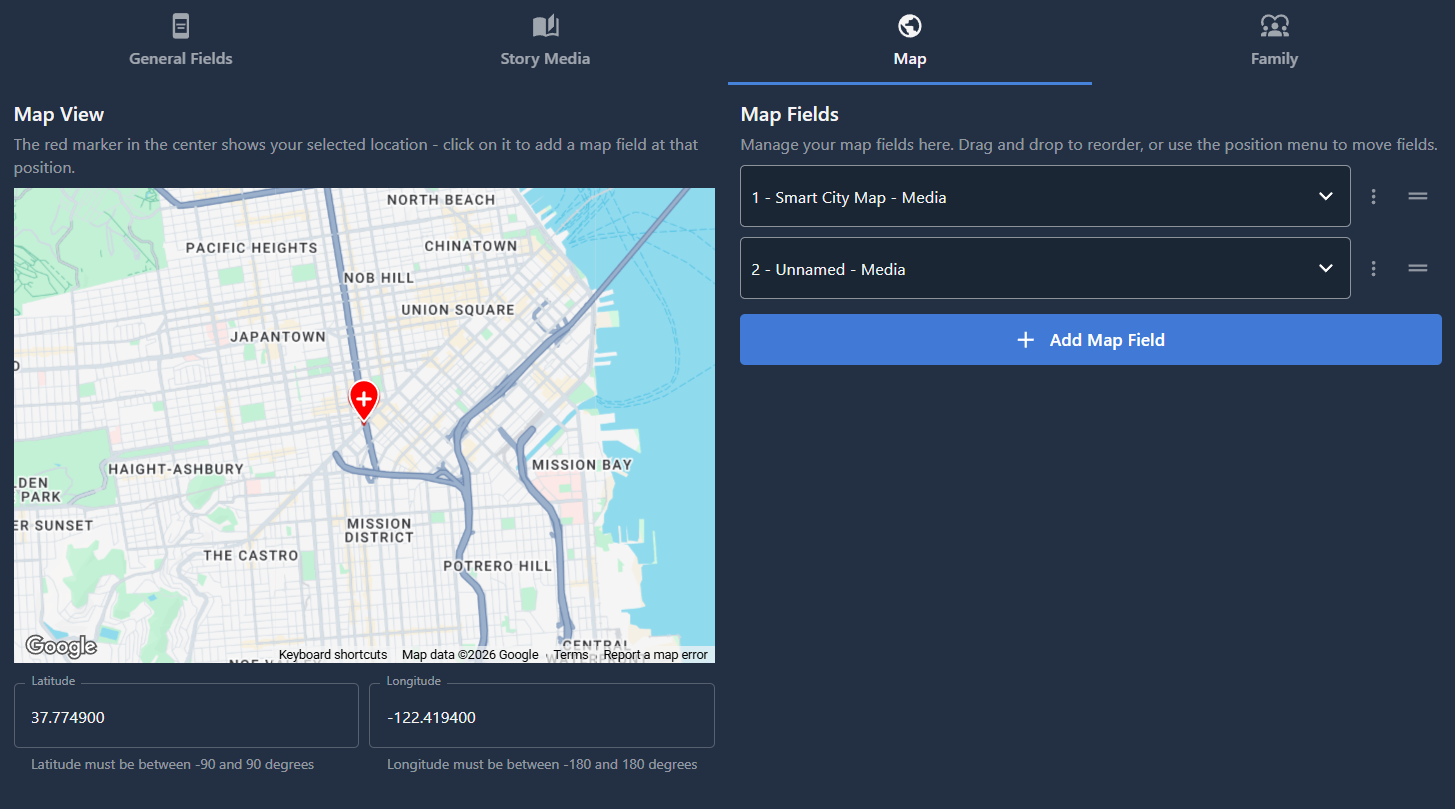
- Left Side: Interactive map display
- Left Below Map: Latitude and longitude coordinate fields
- Enter exact coordinates to position the map pin at a specific location
- Allows you to move the pin to a particular point with ease without dragging
- Provides precision when you need to set an exact location
- Right Side: Route point management panel
Adding Route Points
Create detailed waypoints for your travel guide. Each route point form contains the following fields in order:
1. Type (First field at the top)
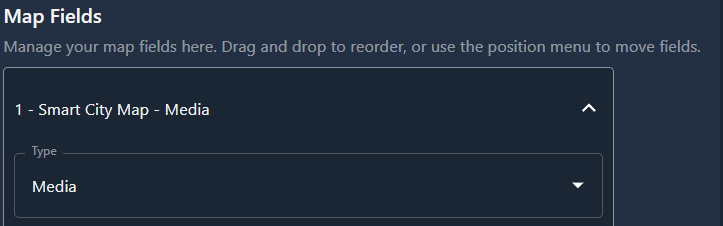
Choose between two types of route points:
- Media Type: Standard route point with media and information
- Object Type: Connect other existing objects to create a linked route experience
For Media Type, the form includes:

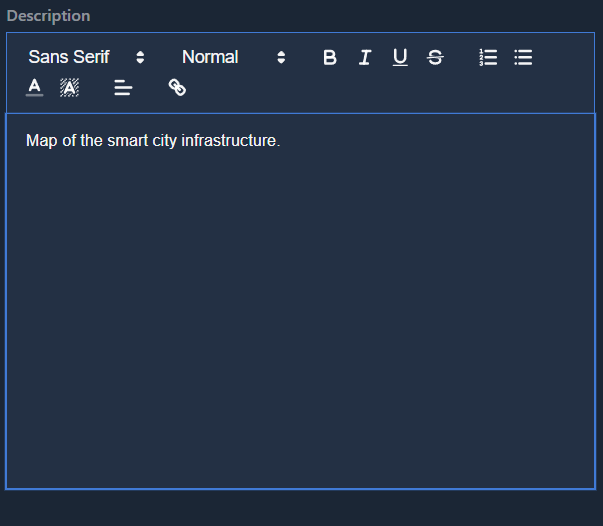
- Name: Title for the route point
- Description: Rich text field to describe the location
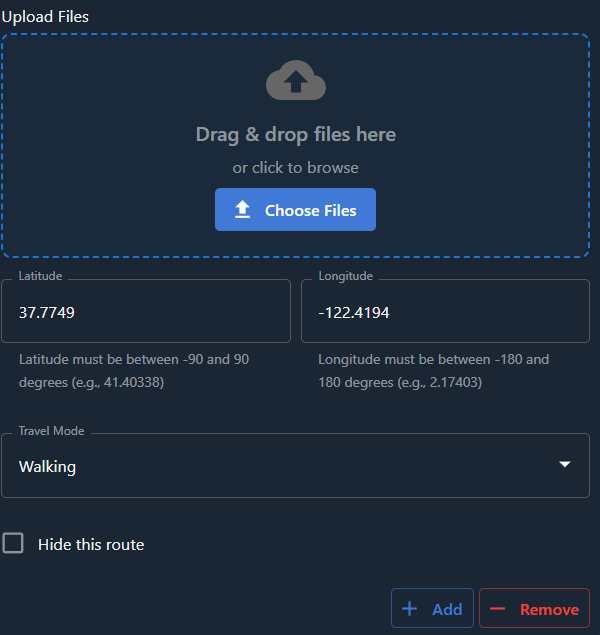
- Media Files: Upload multiple files including:
- Images
- Videos
- Audio files
- Document files
- Latitude and Longitude: Geographic coordinates for the location
- Enter exact coordinates to position the map pin at a specific location
- Allows you to move the pin to a particular point with ease without dragging
- Provides precision when you need to set an exact location
- Travel Mode: Select how users will travel between points:
- Walking
- Driving
- Bicycling
- Transit
- Hide This Route: Checkbox option to hide specific route segments from the map
For Object Type, the form includes:
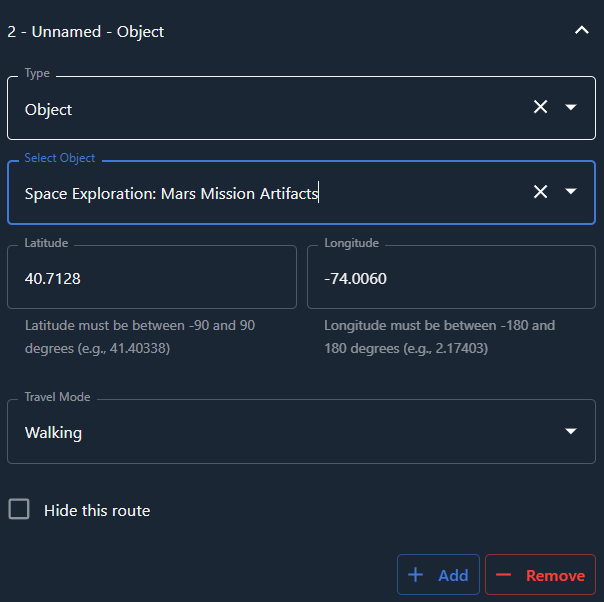
- Object: Dropdown field to select an existing object from your guide
- Latitude and Longitude: Geographic coordinates for the location
- Enter exact coordinates to position the map pin at a specific location
- Allows you to move the pin to a particular point with ease without dragging
- Provides precision when you need to set an exact location
- Travel Mode: Select how users will travel between points:
- Walking
- Driving
- Bicycling
- Transit
- Hide This Route: Checkbox option to hide specific route segments from the map
How Routes Work
- Automatic Connection: When you create multiple places, they are automatically connected based on latitude, longitude, and the selected travel mode
- Create Travel Guides: Build complete journey experiences that users can follow in the guide
- Rerouting: If the automatic route isn't ideal, add checkpoint places between existing points to redirect the path
- Hide Routes: Use the "Hide This Route" option to conceal specific waypoints on the map while still using them for routing purposes
- Multiple Routes: Add as many route points as needed to create comprehensive travel experiences
- Rearrange: Drag and drop route points to reorder them and adjust your travel sequence
- Easy Management: Edit and delete any route point at any time with simple, straightforward controls
This powerful feature allows you to create sophisticated, multi-stop travel experiences that guide users through locations with rich media and contextual information.
Family Tab
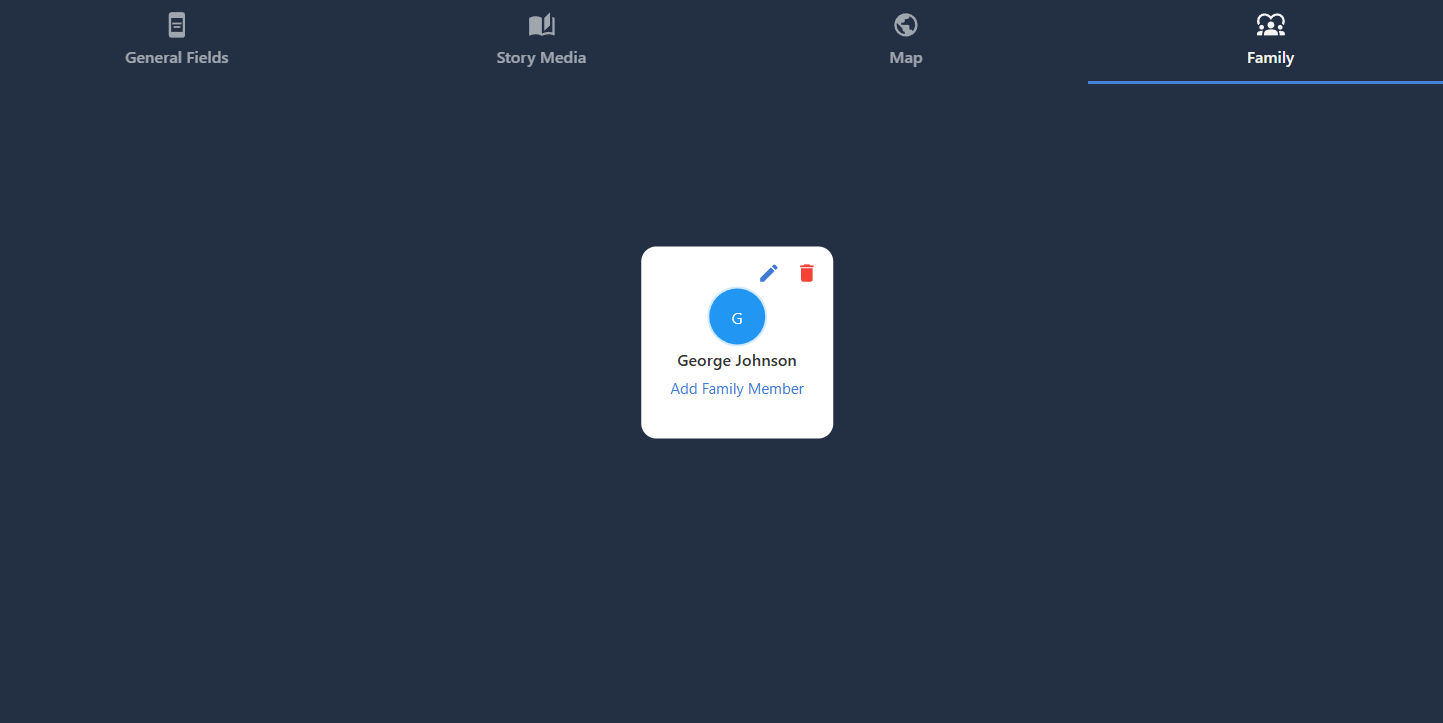
The Family Tab allows you to create and manage comprehensive family trees directly within your objects.
Family Member Information
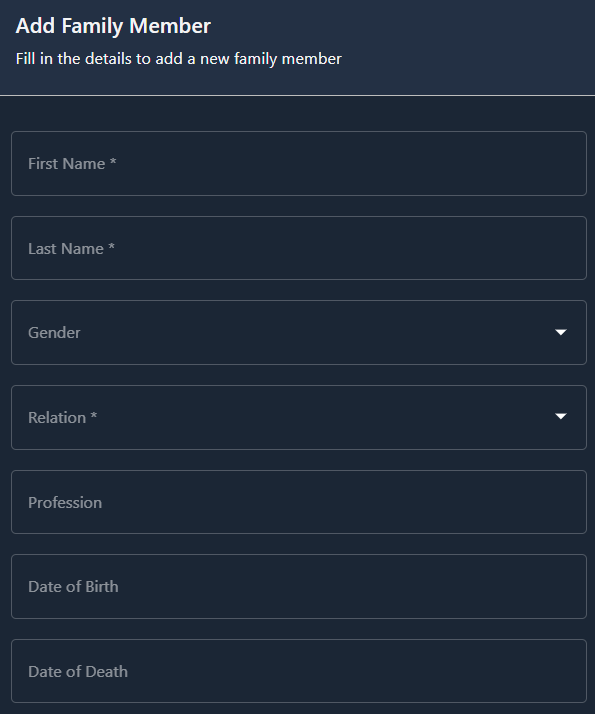
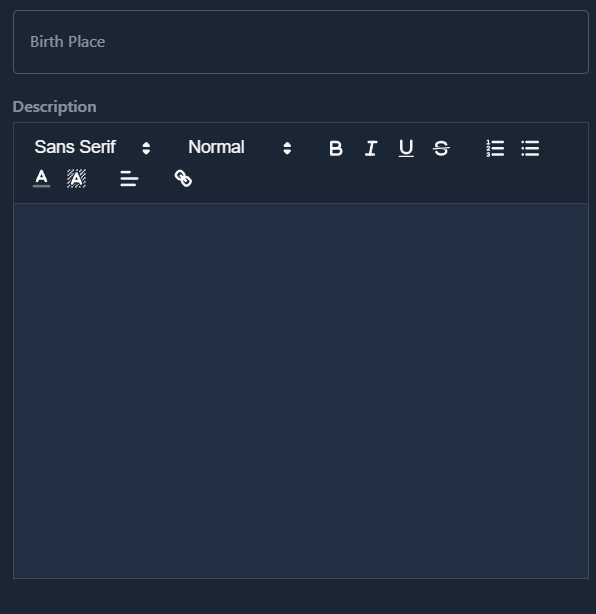
Add detailed information for each family member with the following fields:
- First Name: Individual's given name
- Last Name: Individual's surname
- Gender: Gender identification
- Profession: Occupation or career information
- Date of Birth: When the person was born
- Date of Death: When the person passed away (if applicable)
- Birth Place: Location where the person was born
- Description: Rich text field for additional information and biographical details. Add as much information as you want about the person, including stories, achievements, life events, historical context, or any other details you wish to share.
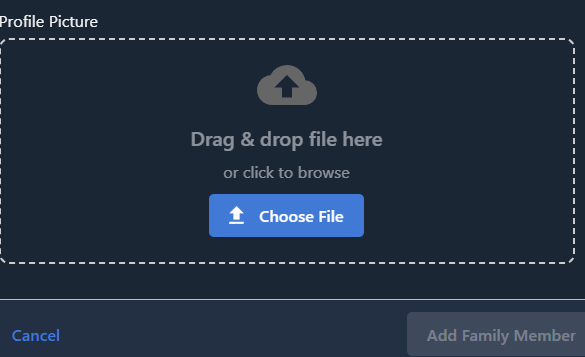
- Profile Picture: Upload a photo or image for the family member
Creating Relationships
Build family connections easily by defining relationships:
- Relationship Types:
- Child
- Parent
- Spouse
- Simple Creation: Add relationships between family members as you create new entries
- Flexible Structure: The family tree grows organically without limitations
Managing the Family Tree
- Edit: Modify family member information and relationships at any time
- Delete: Remove entries as needed
- Automatic Sub-Trees: When the family tree becomes complex, the system automatically organizes it into manageable sub-trees
- Navigate Sub-Trees: Click buttons to view different branches of the family tree with ease
This feature makes it simple to document genealogy, historical family information, or character relationships in a visual and organized format.